> For the complete documentation index, see [llms.txt](https://docs.edgetag.io/llms.txt). Markdown versions of documentation pages are available by appending `.md` to page URLs; this page is available as [Markdown](https://docs.edgetag.io/channels/axon-by-applovin/configuration.md).
# Configuration
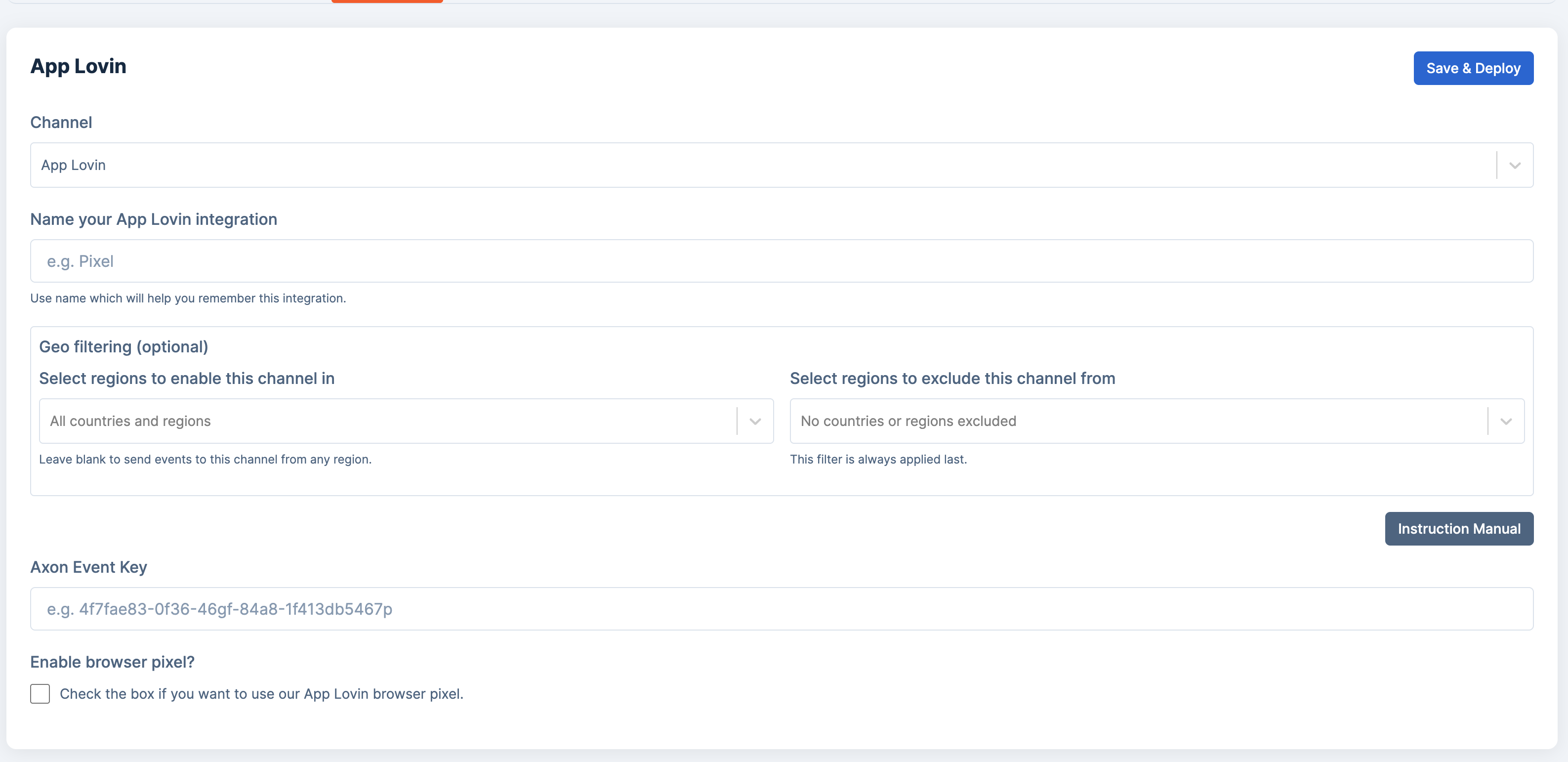
Now that the basic onboarding is complete, let's review all fields in the form and how to use them. The Event Key was already filled in during the basic onboarding, so we will skip it.
### Enable browser pixel?
By enabling this option, we will begin sending browser events alongside the server events that you receive automatically. We ensure that both the browser and server events share the same event ID. If you are using our browser integration or any of our apps, enabling this feature will work seamlessly. For headless applications, you will need to add our NPM package to your project to allow support—more on [NPM packages](/implementation/headless/browser-packages.md).
### Default Category
When the browser pixel is enabled, you will have the option to set the Default Category for your browser event. This category will be used if your category mapping does not align with the category provided by the shop.
### Category ID Mapping
We offer a tool that makes it easy for you to manage all the categories in your shop. Simply enter the name of the category you want to create and select the corresponding Axon category. After entering the name and selecting a category, click "Add" to save.
{% hint style="info" %}
Start typing in the category search box to get more options. Not all are shown at the start.
{% endhint %}
---
# Agent Instructions
This documentation is published with GitBook. GitBook is the documentation platform designed so that both humans and AI agents can read, navigate, and reason over technical content effectively. Learn more at gitbook.com.
## Querying This Documentation
If you need additional information that is not directly available in this page, you can query the documentation dynamically by asking a question.
Perform an HTTP GET request on the current page URL with the `ask` query parameter, and the optional `goal` query parameter:
```
GET https://docs.edgetag.io/channels/axon-by-applovin/configuration.md?ask=&goal=
```
`ask` is the immediate question: it should be specific, self-contained, and written in natural language.
`goal` is optional and describes the broader end goal you are ultimately trying to accomplish on behalf of the user. GitBook uses it to tailor the answer towards what is most useful for that goal.
The response will contain a direct answer to the question and relevant excerpts and sources from the documentation.
Use this mechanism when the answer is not explicitly present in the current page, you need clarification or additional context, or you want to retrieve related documentation sections.