> For the complete documentation index, see [llms.txt](https://docs.edgetag.io/llms.txt). Markdown versions of documentation pages are available by appending `.md` to page URLs; this page is available as [Markdown](https://docs.edgetag.io/channels/listrak/onboarding.md).
# Onboarding
Listrak channels provide a easy setup using API credentials to link your **Listrak** account with **EdgeTag**. This connection allows your site to stream events and sync contacts with **Listrak** for enhanced email marketing automation. Let's walk through the setup process.
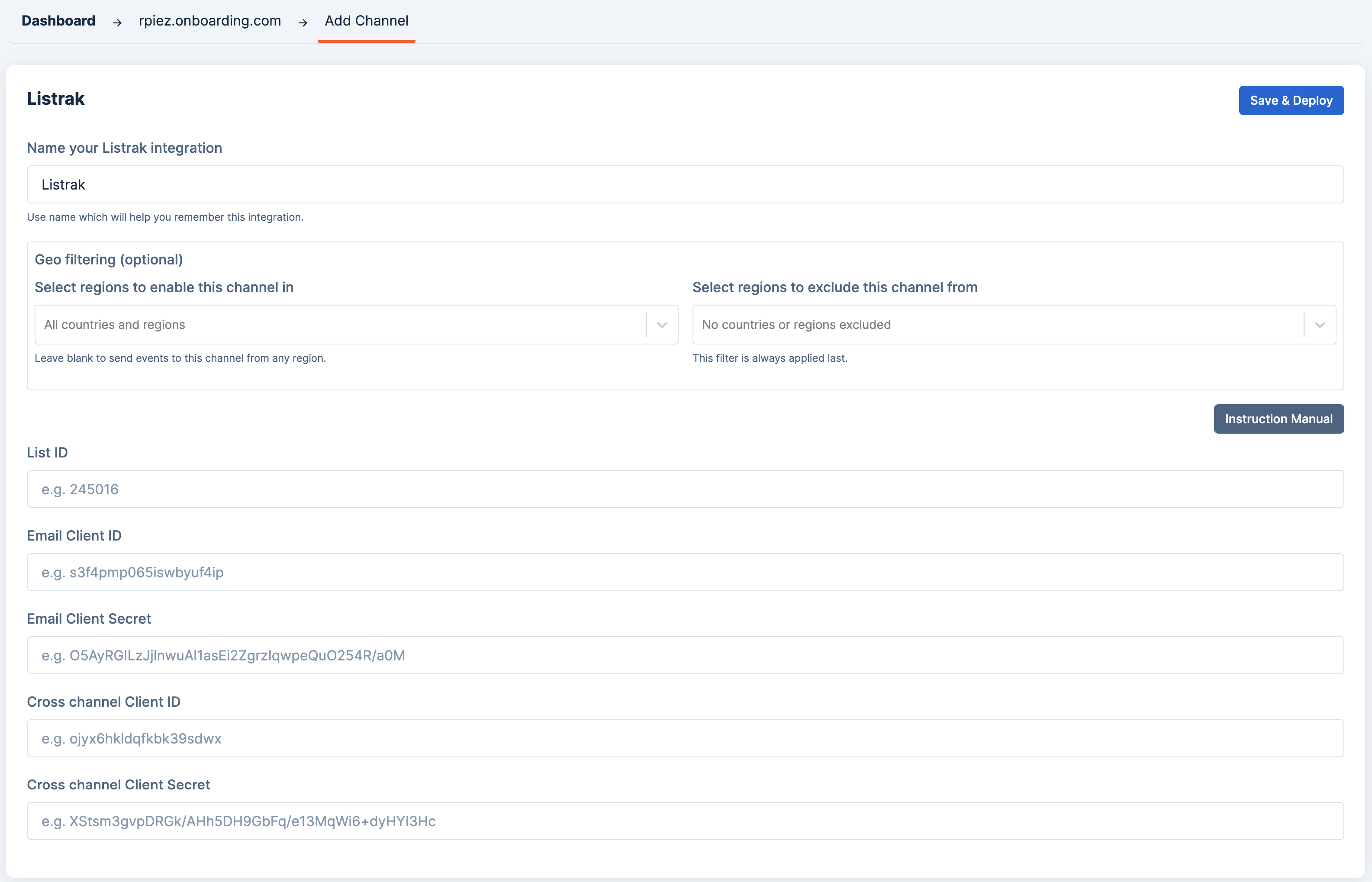
### Add Channel
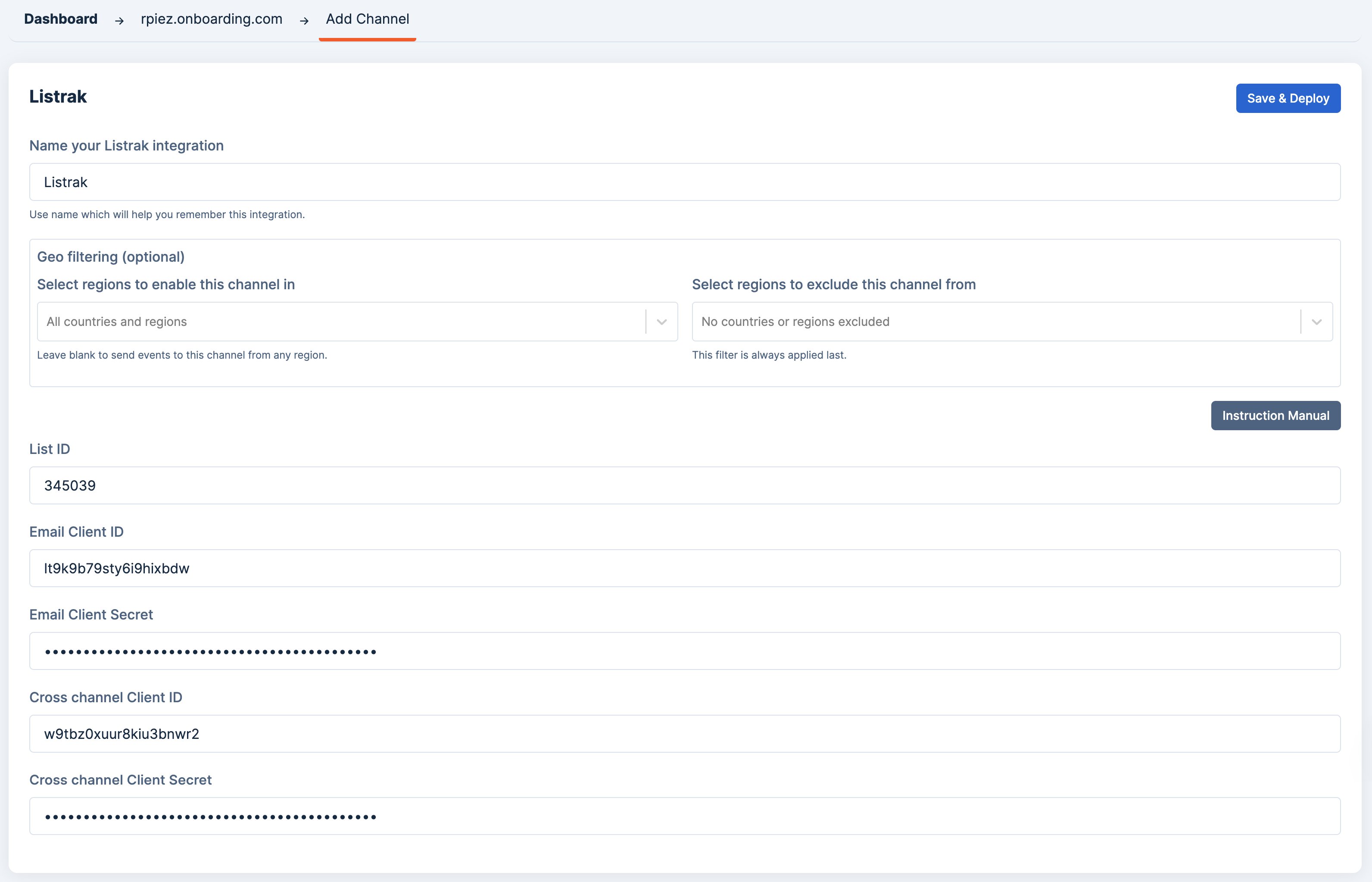
To add a channel, begin by entering the channel's name. We recommend choosing a name that clearly describes the channel you are adding. This will assist with debugging if any issues arise. Once you have entered the name, you'll need to obtain API credentials from your **Listrak** account.
### Get Email API Integration
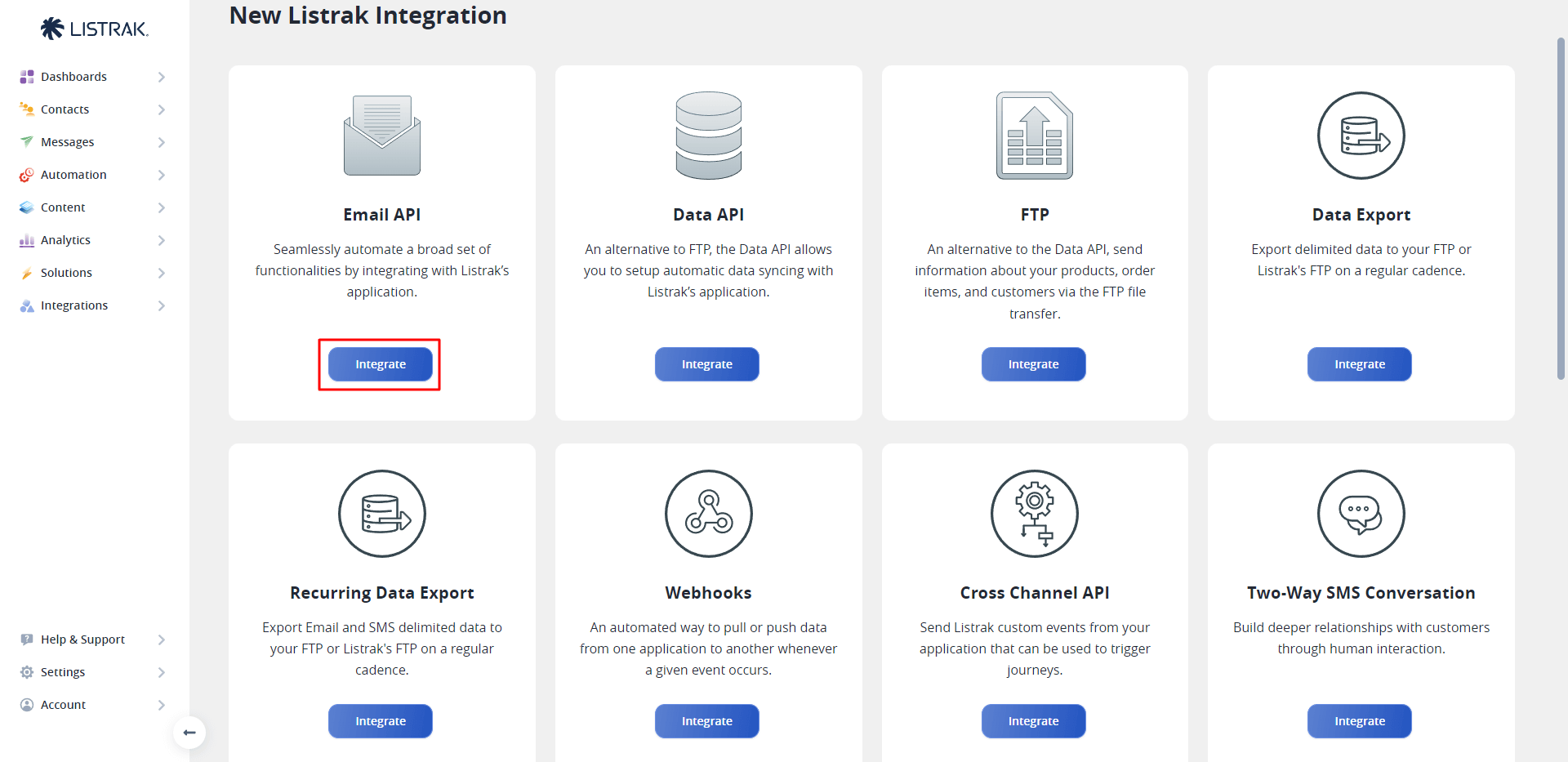
Navigate to [Listrak Integrations > New Integration](https://admin.listrak.com/Integrations/Home/New) and locate the Email API section. Click the **"Integrate"** button under **Email API** to begin setting up your email integration.
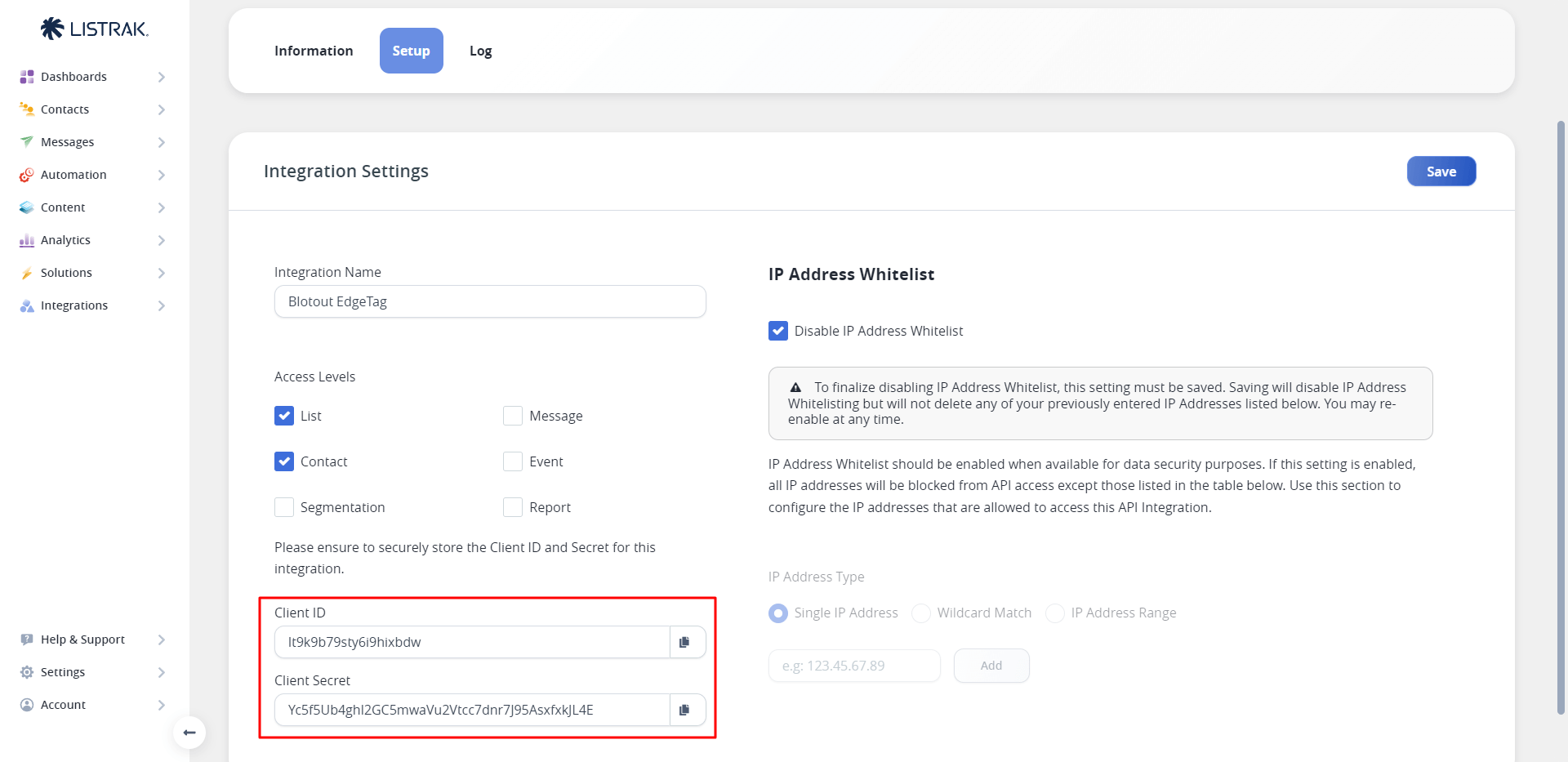
Enter a descriptive name for your integration in the integration name field. Check the **List**, **Contact**, and **Disable IP Address Whitelist** options to ensure proper functionality, then click **Save** to create the integration.
Once the integration is created, you'll see the generated credentials on the integration page. Copy the **Client ID** and **Client Secret** from this page.
Paste the copied Client ID and Client Secret into EdgeTag's corresponding Email Client ID and Email Client Secret fields respectively.
### Get Cross Channel API Integration
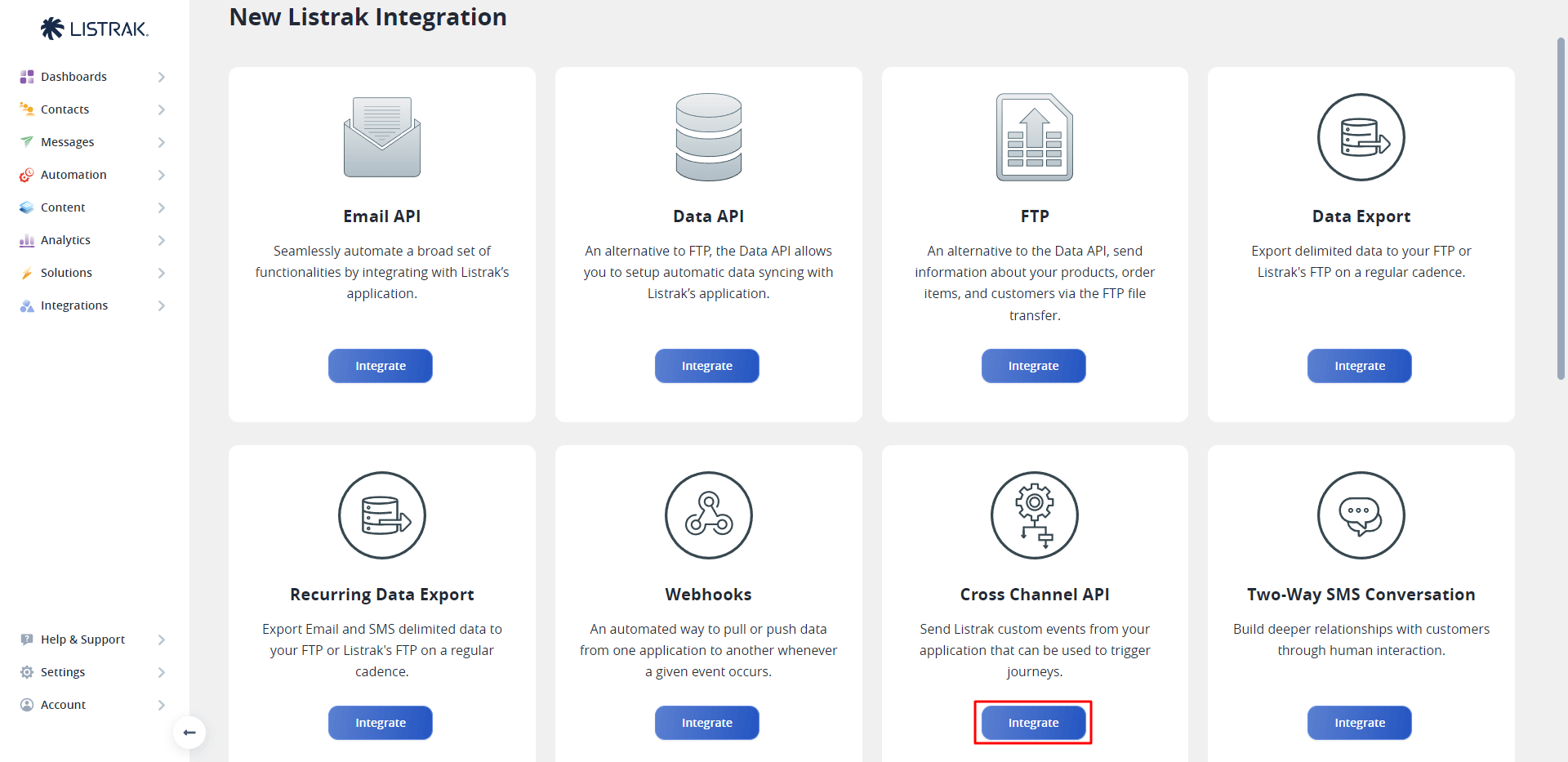
Return to [Listrak Integrations > New Integration](https://admin.listrak.com/Integrations/Home/New) and locate the Cross Channel API section. Click the **"Integrate"** button under **Cross Channel API** to set up your cross-channel tracking integration.
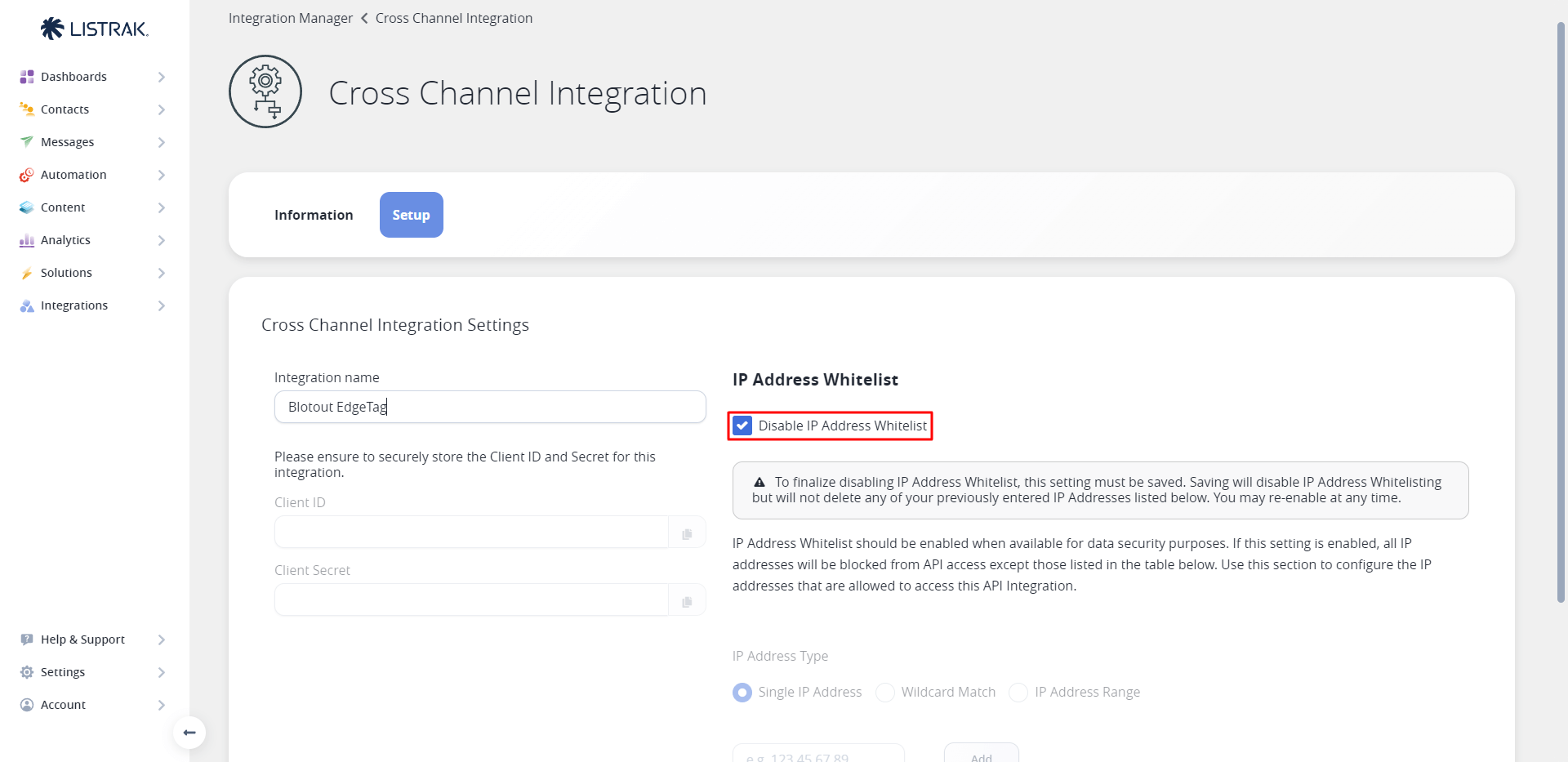
Enter a descriptive name for your cross-channel integration and check the **Disable IP Address Whitelist** option to allow EdgeTag to communicate with your Listrak account, then click **Save** to create the integration.
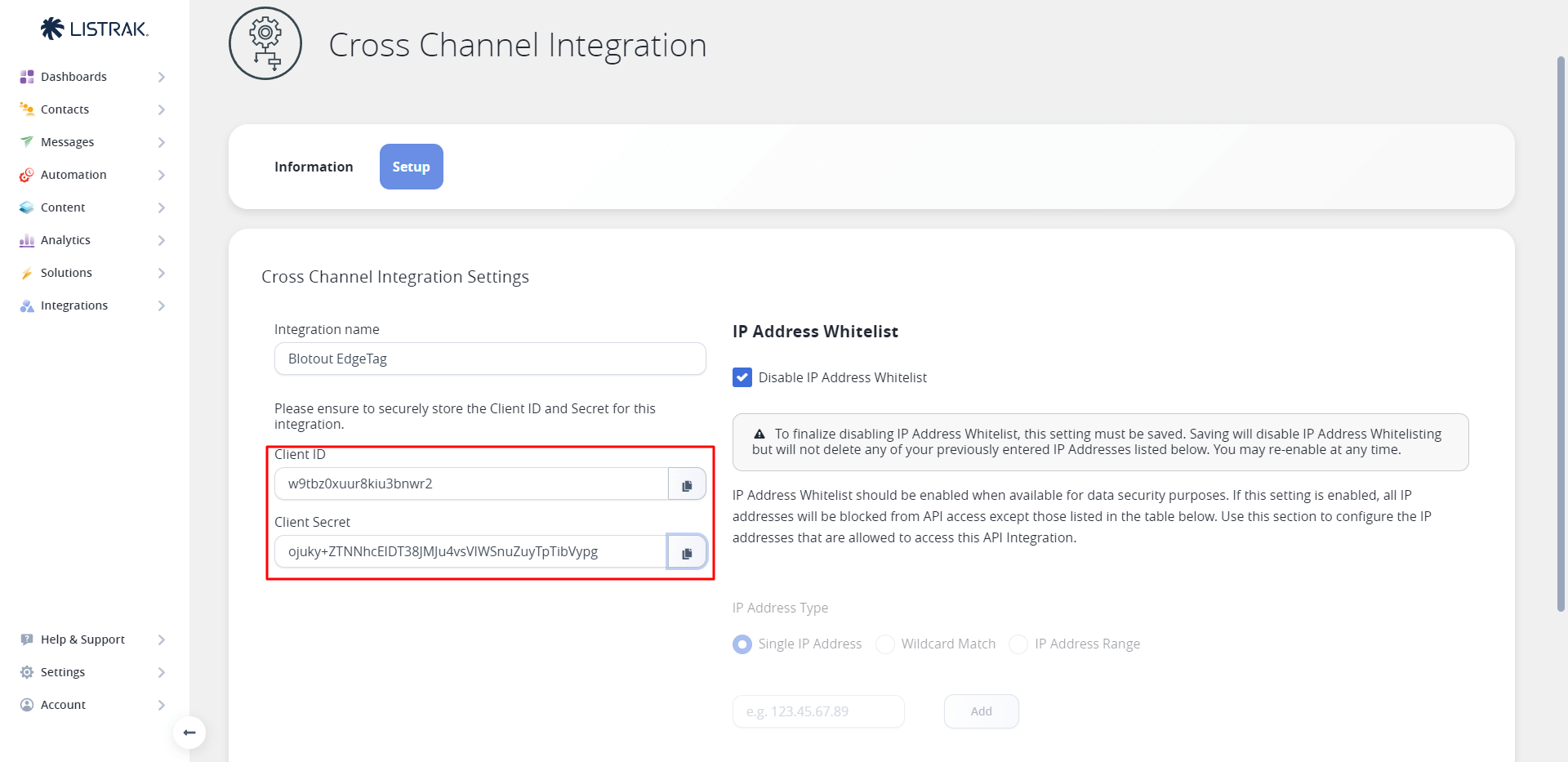
After the integration is successfully created, copy the generated **Client ID** and **Client Secret** from the integration details
Paste the copied Client ID and Client Secret into EdgeTag's corresponding Cross Channel Client ID and Cross Channel Client Secret fields respectively.
### Get List ID
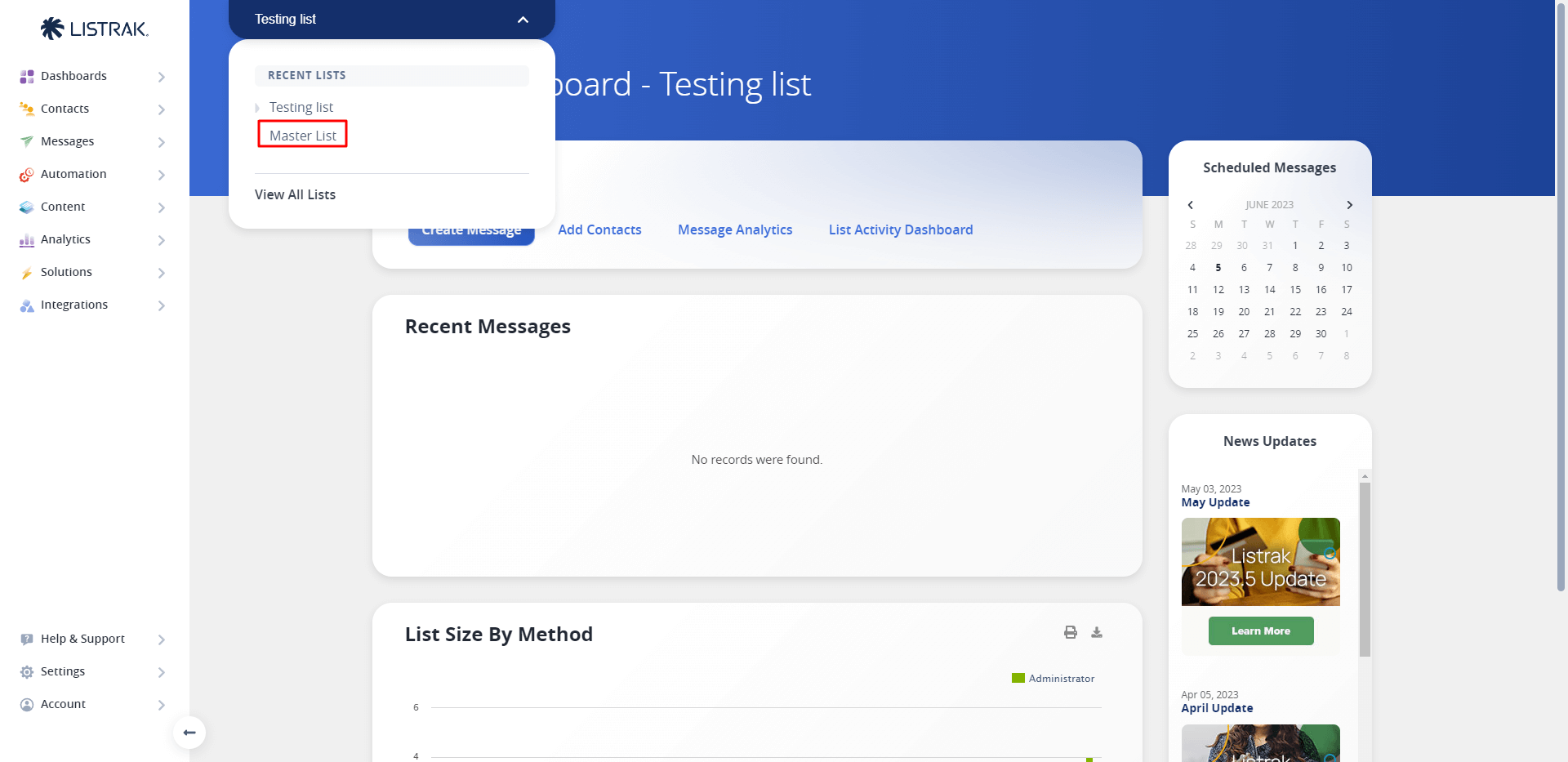
Navigate to [Dashboards > Email Dashboard](https://admin.listrak.com/Analytics/HomeDashboard.aspx) and locate the **Lists dropdown** at the top left corner of the dashboard. Click on the dropdown and select the appropriate list where you want to add your contacts.
Once you've selected your target list, look at the browser URL bar to find the ListID parameter. Copy the **ListID** number from the URL (for example, 345039).
Paste the copied ListID into EdgeTag's List ID field to complete the list configuration.
For optimal tracking performance, you may need to **configure custom events in your Listrak account**. These events ensure reliable data collection even when ad-blockers prevent standard tracking. Follow the detailed steps in our [configuration guide](/channels/listrak/faq.md#how-to-setup-converson-event-in-listrak) to set up the required custom events.
Click "Save & Deploy."
---
# Agent Instructions
This documentation is published with GitBook. GitBook is the documentation platform designed so that both humans and AI agents can read, navigate, and reason over technical content effectively. Learn more at gitbook.com.
## Querying This Documentation
If you need additional information that is not directly available in this page, you can query the documentation dynamically by asking a question.
Perform an HTTP GET request on the current page URL with the `ask` query parameter, and the optional `goal` query parameter:
```
GET https://docs.edgetag.io/channels/listrak/onboarding.md?ask=&goal=
```
`ask` is the immediate question: it should be specific, self-contained, and written in natural language.
`goal` is optional and describes the broader end goal you are ultimately trying to accomplish on behalf of the user. GitBook uses it to tailor the answer towards what is most useful for that goal.
The response will contain a direct answer to the question and relevant excerpts and sources from the documentation.
Use this mechanism when the answer is not explicitly present in the current page, you need clarification or additional context, or you want to retrieve related documentation sections.