> For the complete documentation index, see [llms.txt](https://docs.edgetag.io/llms.txt). Markdown versions of documentation pages are available by appending `.md` to page URLs; this page is available as [Markdown](https://docs.edgetag.io/channels/pinterest/configuration.md).
# Configuration
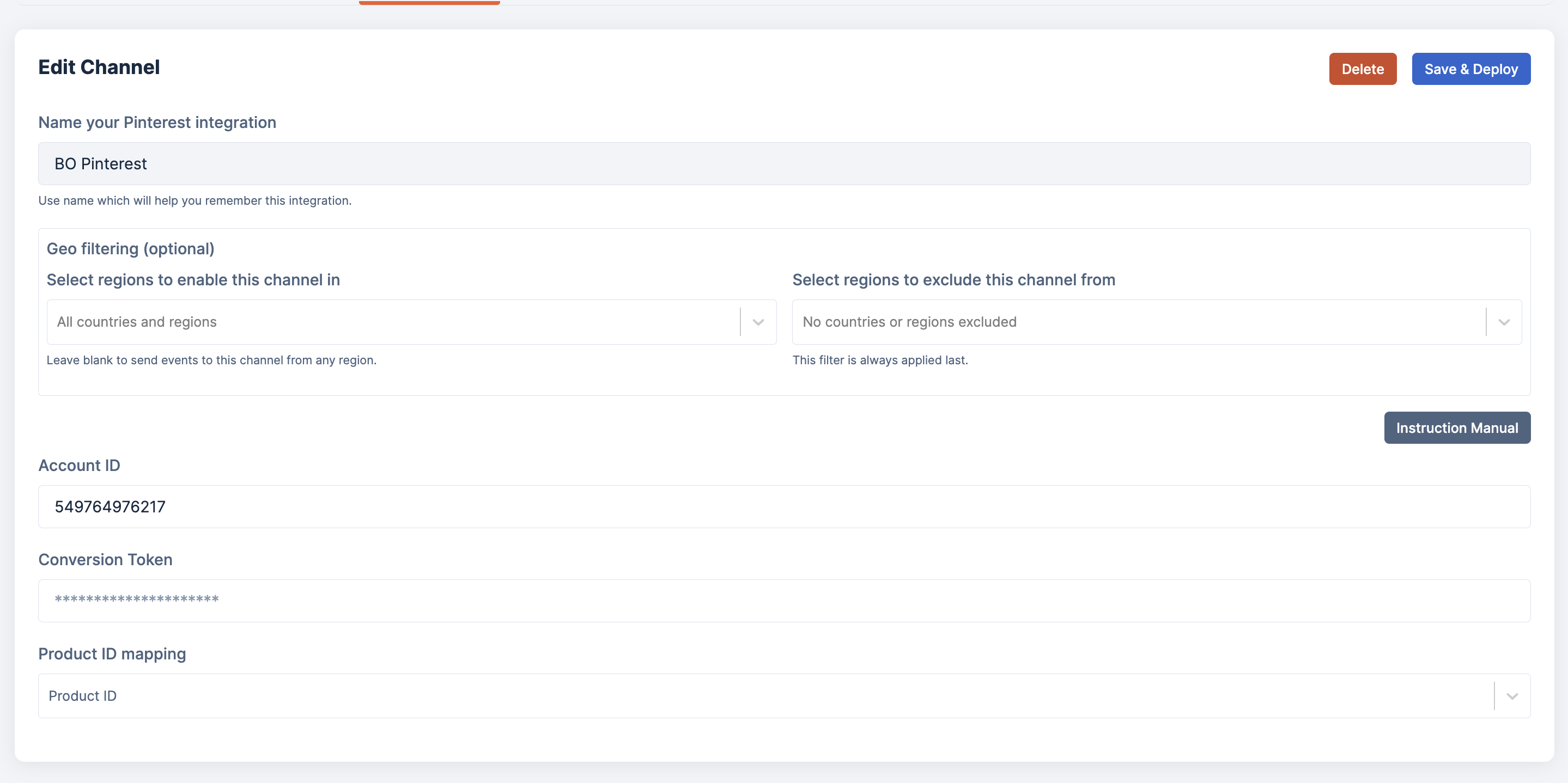
Now that the basic onboarding is complete, let's review other fields in the form and how to use them. The Account ID and Conversion Token were already filled in during the basic onboarding, so we will skip them.
### Product ID Mapping
When syncing your product catalog with Pinterest, you may be using a different format than what you have in your e-commerce platform. This can result in the Product ID expected by Pinterest being different from what you're sending from your website. As a result, your catalog match rate will be low. This setting allows you to specify which property from the event you would like to send to Pinterest as your Product ID.
#### How can you determine which ID you are using?
Please go to the Catalogue section in Pinterest Ads Manager. Select the active catalogue you are using. Select an ID for any one of the products and compare this ID with the value in your e-commerce platform and find which type it is. Ensure that the type matches the product ID mapping value configured in EdgeTag.
---
# Agent Instructions
This documentation is published with GitBook. GitBook is the documentation platform designed so that both humans and AI agents can read, navigate, and reason over technical content effectively. Learn more at gitbook.com.
## Querying This Documentation
If you need additional information that is not directly available in this page, you can query the documentation dynamically by asking a question.
Perform an HTTP GET request on the current page URL with the `ask` query parameter, and the optional `goal` query parameter:
```
GET https://docs.edgetag.io/channels/pinterest/configuration.md?ask=&goal=
```
`ask` is the immediate question: it should be specific, self-contained, and written in natural language.
`goal` is optional and describes the broader end goal you are ultimately trying to accomplish on behalf of the user. GitBook uses it to tailor the answer towards what is most useful for that goal.
The response will contain a direct answer to the question and relevant excerpts and sources from the documentation.
Use this mechanism when the answer is not explicitly present in the current page, you need clarification or additional context, or you want to retrieve related documentation sections.