> For the complete documentation index, see [llms.txt](https://docs.edgetag.io/llms.txt). Markdown versions of documentation pages are available by appending `.md` to page URLs; this page is available as [Markdown](https://docs.edgetag.io/overview/getting-started.md).
# Getting Started
Starting with EdgeTag is really straightforward. You will need to enter your business email, and the system will guide you through the setup step by step. You can then add your teammates once the setup is complete.
However, you need the following access to get the setup entirely done;
1. **Access to your DNS provider:** This is where you add DNS records for the website you want to configure. This step is necessary to verify that you are the first party on the internet for your setup.
2. **Channel credentials:** For example, if you want to add Meta, you need a pixel ID and permission to authenticate the dataset, which is available upon setup.
3. **Access to your website code**: Ultimately, you will need to add snippet code and desired events to your site.
Now that you have the essential things ready, let's go through the onboarding process. You can complete it in under 15 minutes if you have all the necessary aspects readily available.
### Platform
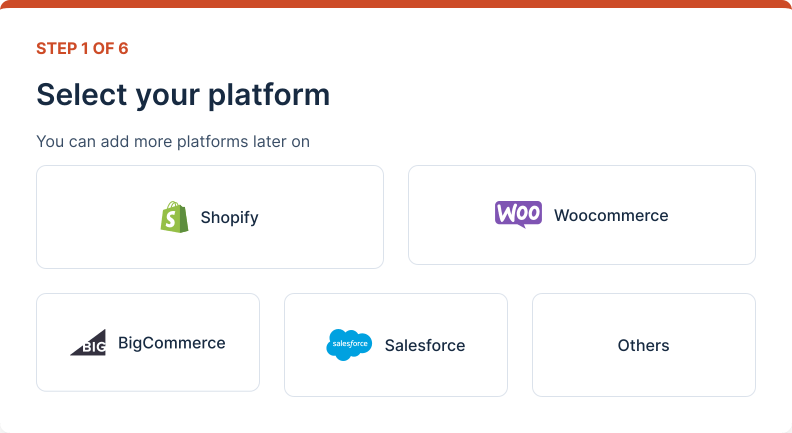
In the first step, you are required to select the platform for your site, such as Shopify, WooCommerce, or another platform.
### Domain
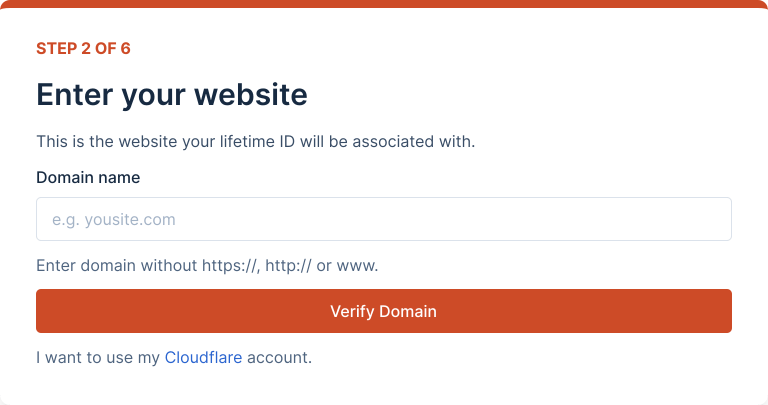
In the next step, please enter your site's domain. If your site is, let's say, **, enter mysite.com.
{% hint style="warning" %}
Remove 'https\://' and '[www](http://www).' from the domain.
{% endhint %}
Once you enter it, click 'Verify Domain'. Our system will verify the domain's validity and create a first-party subdomain, providing you with access to the EdgeTag system.
{% hint style="warning" %}
Ensure you have entered the correct domain. It is critical to get it right.
{% endhint %}
### DNS
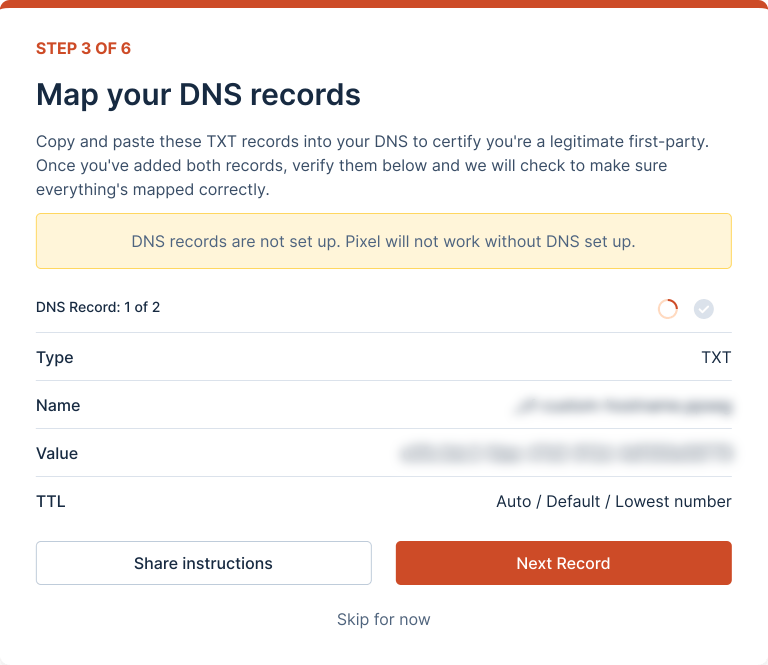
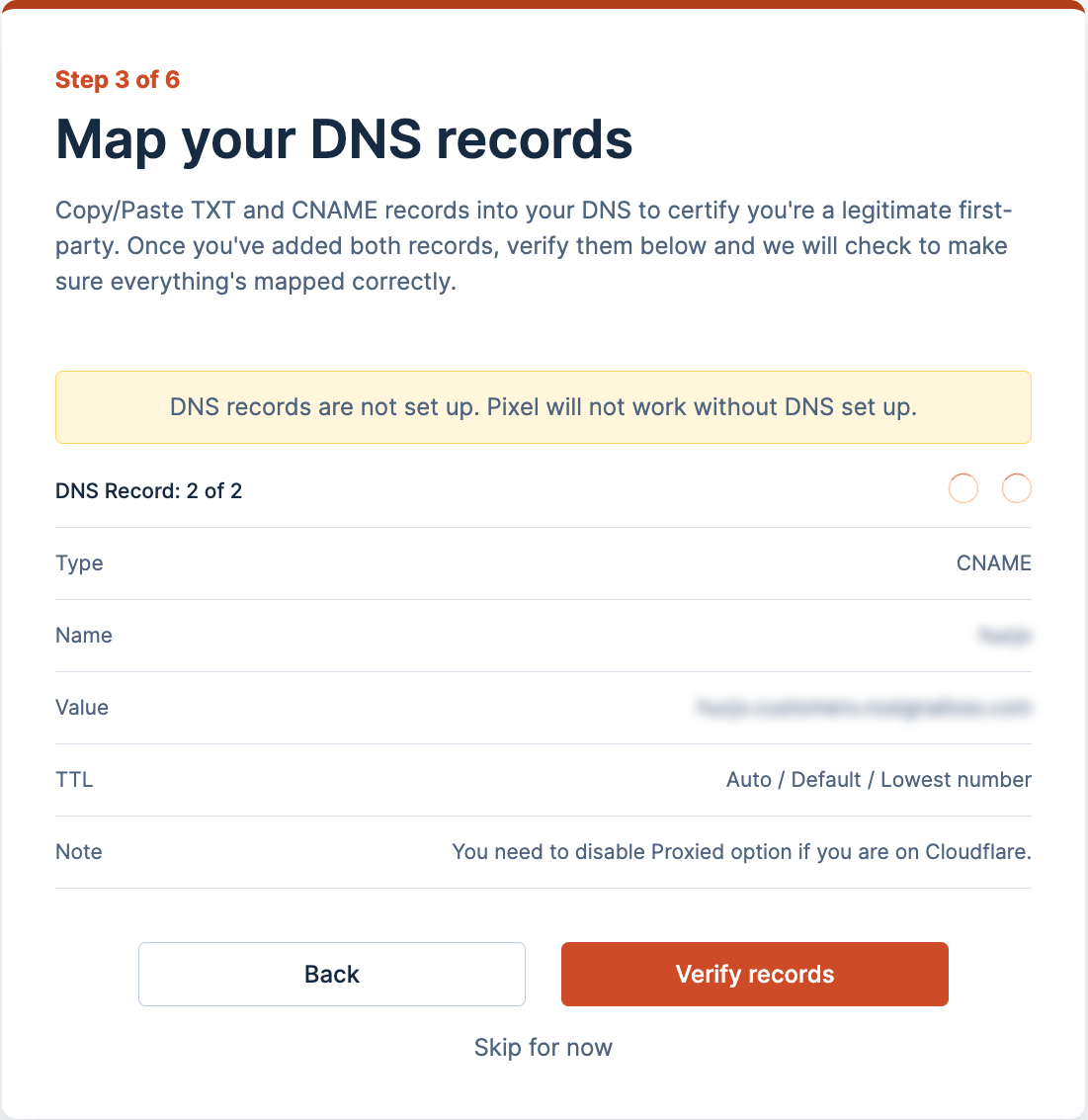
Once you have entered and verified your domain, you will receive two DNS records (one TXT record and one CNAME record) that must be added to your DNS to certify your setup as first-party.
The TXT record is necessary to verify ownership of the domain that you entered in the previous step.
{% hint style="info" %}
Some providers insist that they have the domain attached to the TXT record, while others don't. For the ones who do, add the domain to the name of the TXT record. (in our screenshot, we would need to *change \_cf-custom-hostname.ounvr* to *\_cf-custom-hostname.ounvr.mysite.com*)
{% endhint %}
Once you have added the TXT record, click 'Next record'. We will then see a CNAME record, which we need to add. This record will map your newly created first-party subdomain to the edge and create a certificate for your.
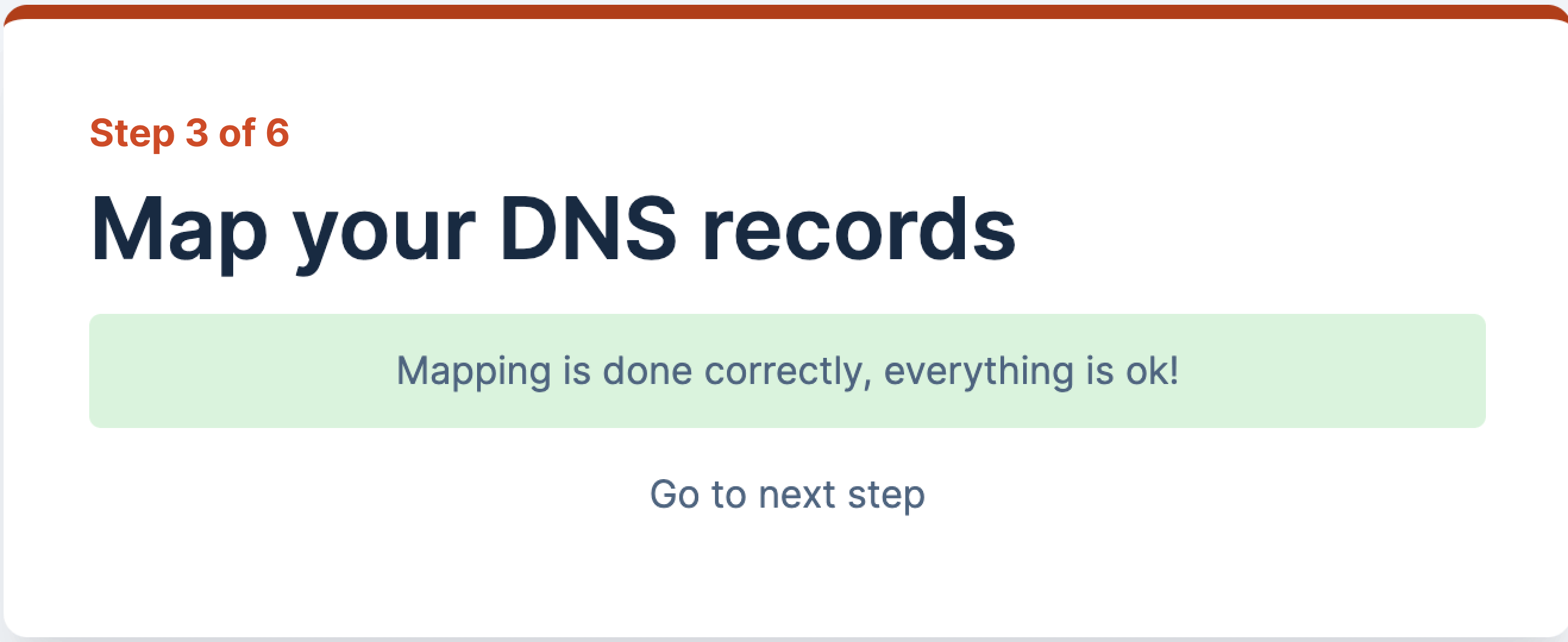
Click on 'Verify Records' after adding both records, and you should see a green box indicating that everything looks great.
{% hint style="info" %}
Some providers need longer to propagate DNS records. You can click skip if you do not see a green box (and you added the records). It will get verified automatically.
{% endhint %}
### Consent
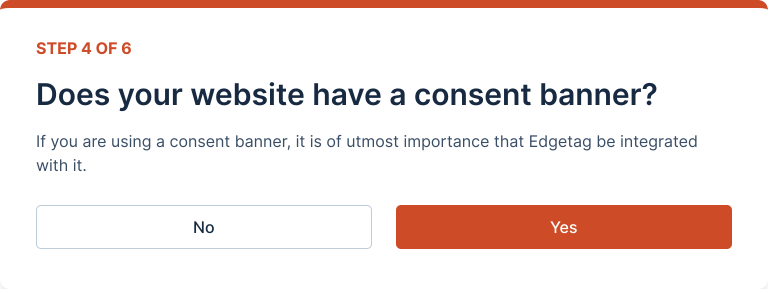
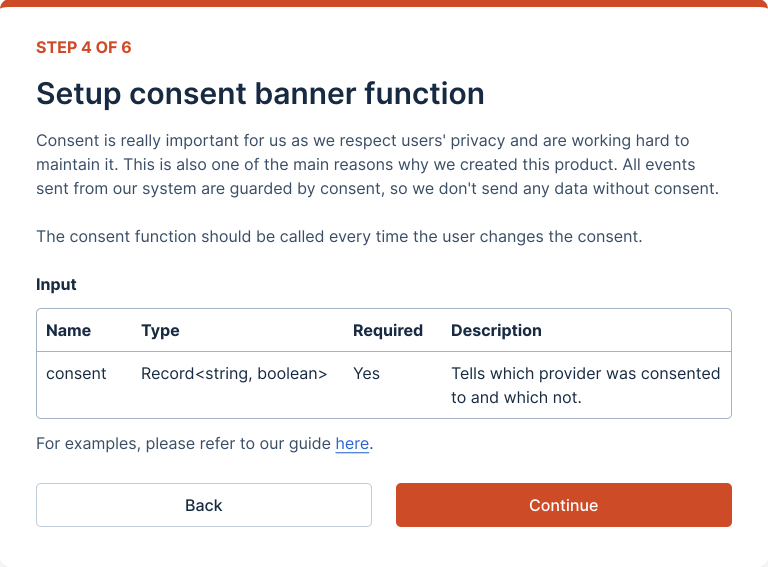
Consent is crucial for us, as we respect users' privacy and are committed to maintaining it. This is also one of the main reasons why we created this product. All events sent from our system are guarded by consent, so we don't send any data without permission.
{% hint style="info" %}
You can always enable consent later on inside our app.
{% endhint %}
### Channels
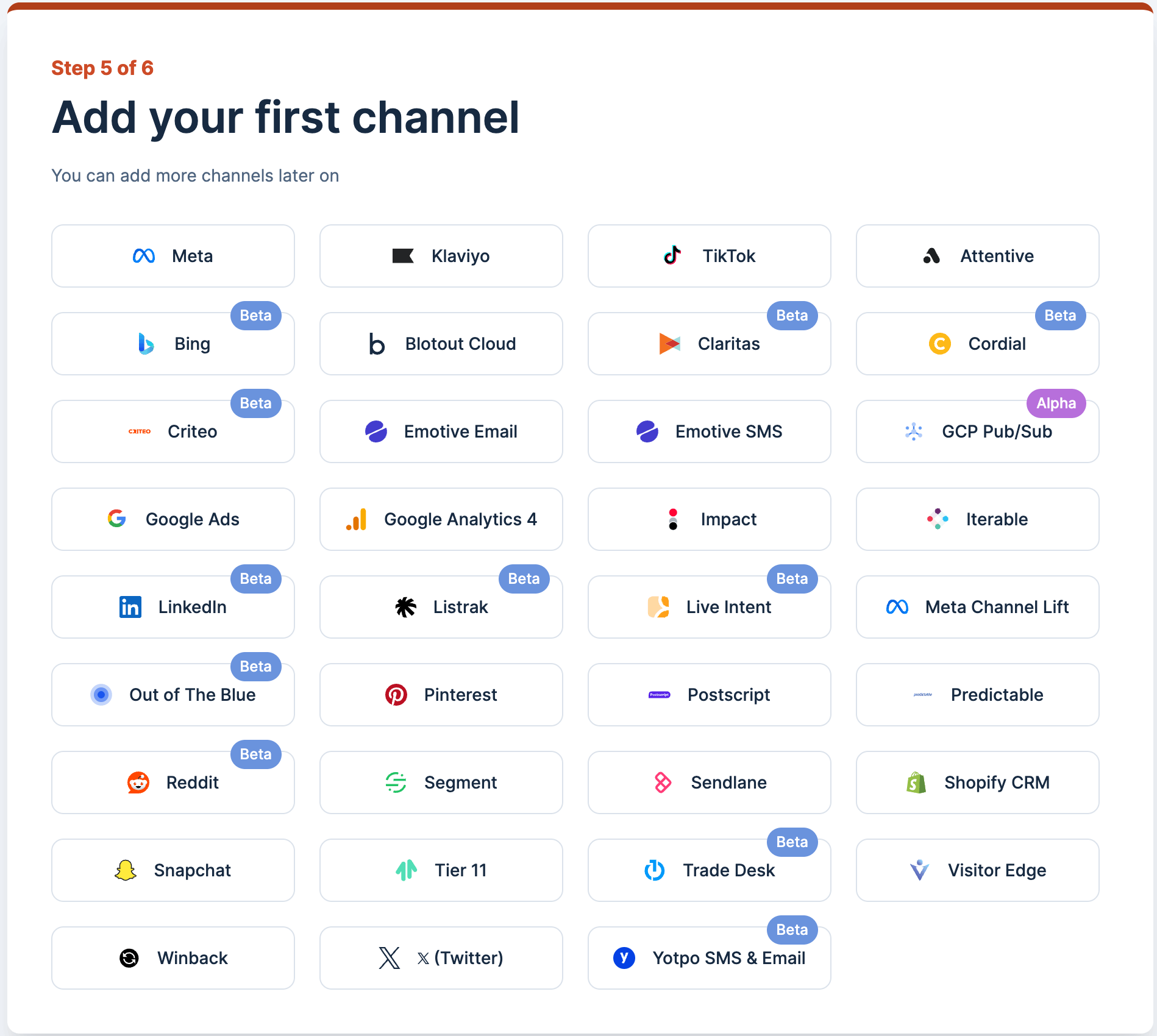
In the next step of the onboarding process, we will select the channels you want to add. You will still have the option to add channels later from the dashboard if you wish to do so.
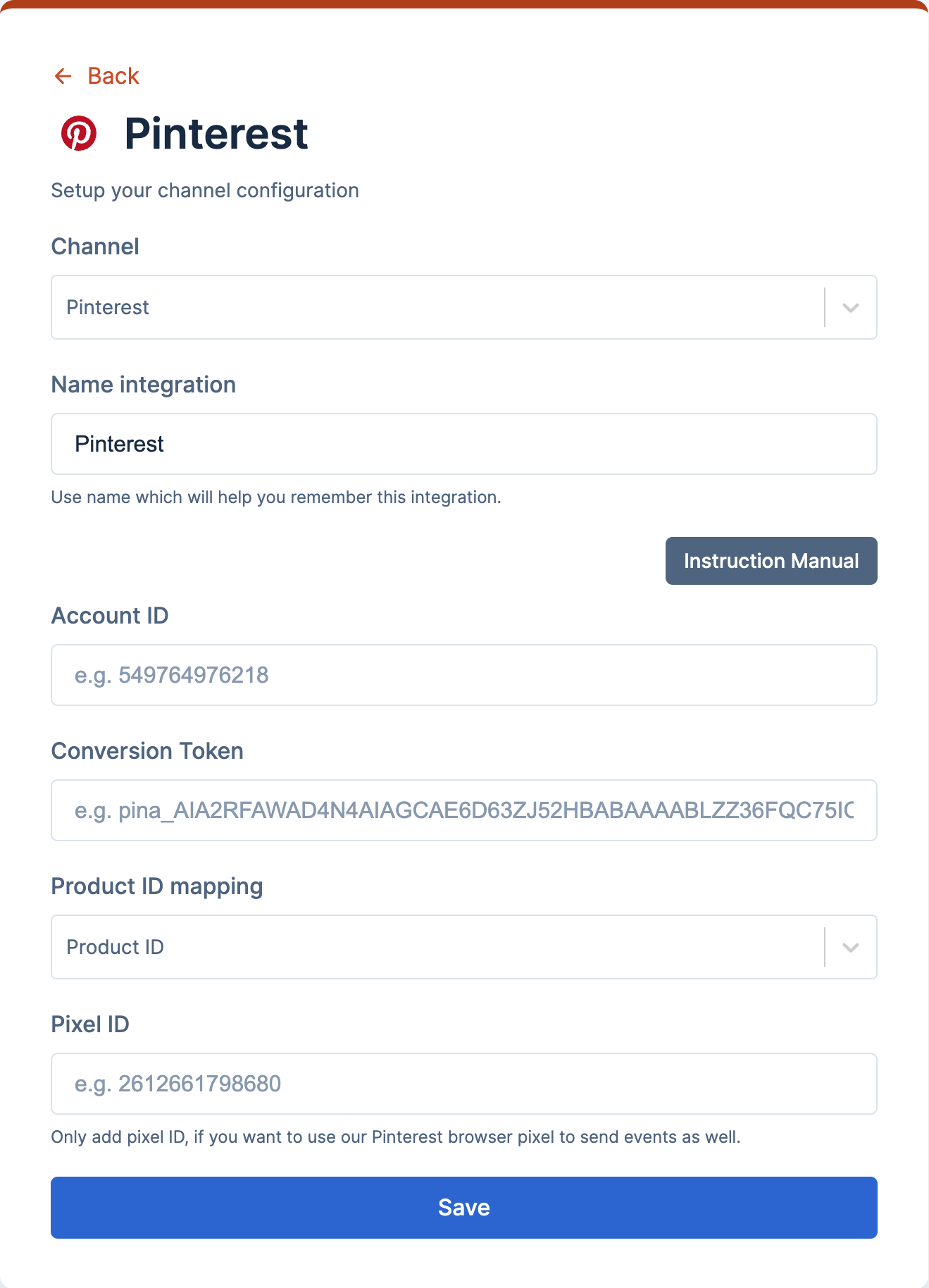
In this case, I will select the Pinterest channel that I added during the onboarding process.
Now, we need to enter the details to configure all the channels we selected earlier (Pinterest, in my case). Once added, click 'Save' to save the channel configuration.
### Billing Details
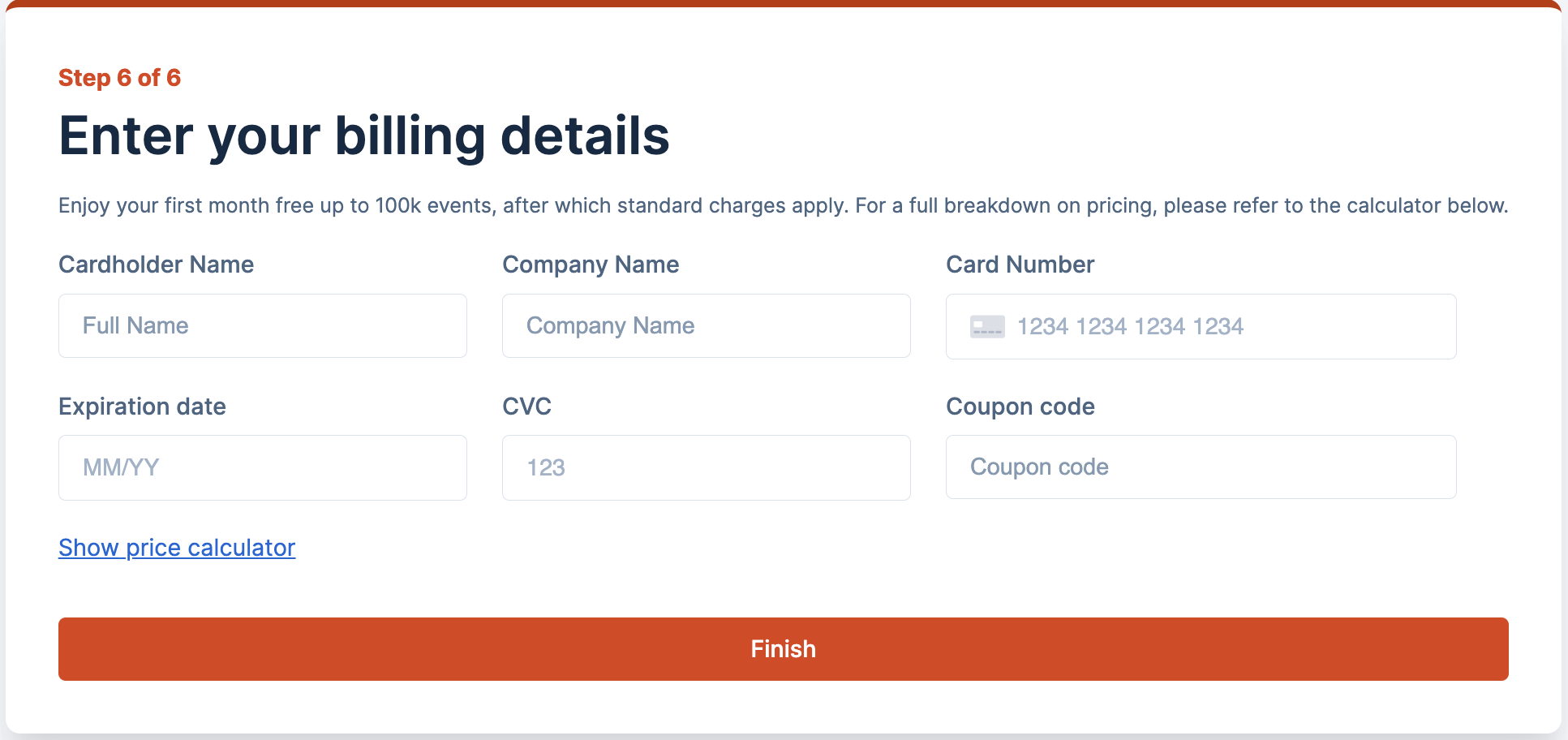
You must enter your credit card details before deployment happens. Without a credit card, deployment is not allowed.
$49.99/month includes one domain and 100K API calls (Events). You get a free trial of 30 days.
### Deployment
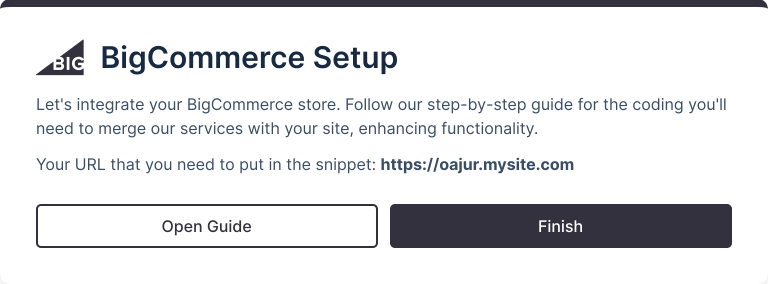
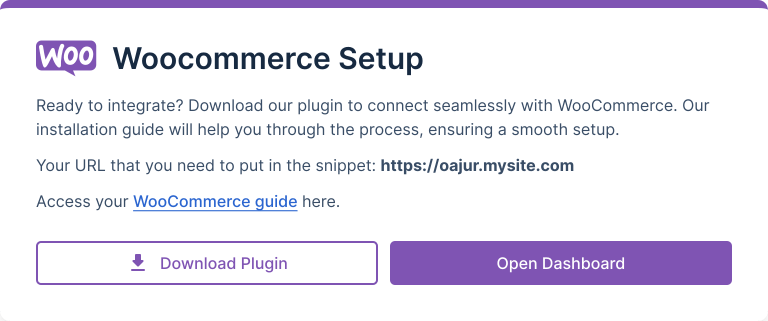
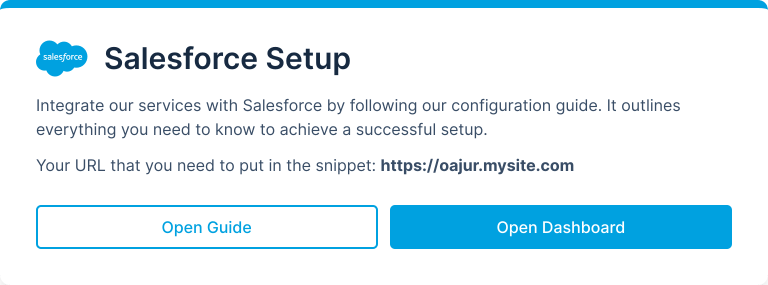
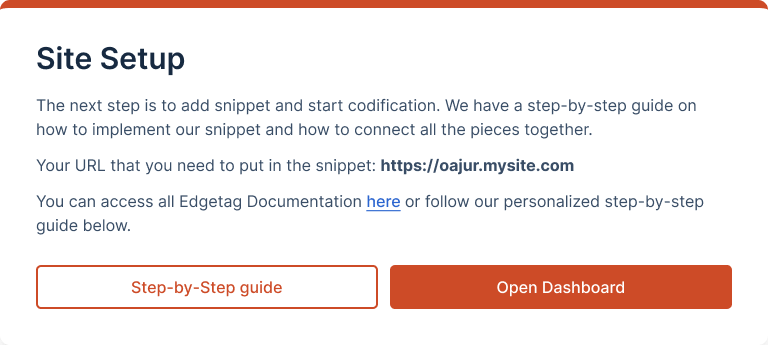
Now that everything is ready, we will begin setting up your environment. After a short wait, you will see one of the following screens, depending on the platform you chose. This screen will explain the final step: adding our snippet to your site.
#### BigCommerce
#### WooCommerce
#### Salesforce
#### Others
---
# Agent Instructions
This documentation is published with GitBook. GitBook is the documentation platform designed so that both humans and AI agents can read, navigate, and reason over technical content effectively. Learn more at gitbook.com.
## Querying This Documentation
If you need additional information that is not directly available in this page, you can query the documentation dynamically by asking a question.
Perform an HTTP GET request on the current page URL with the `ask` query parameter, and the optional `goal` query parameter:
```
GET https://docs.edgetag.io/overview/getting-started.md?ask=&goal=
```
`ask` is the immediate question: it should be specific, self-contained, and written in natural language.
`goal` is optional and describes the broader end goal you are ultimately trying to accomplish on behalf of the user. GitBook uses it to tailor the answer towards what is most useful for that goal.
The response will contain a direct answer to the question and relevant excerpts and sources from the documentation.
Use this mechanism when the answer is not explicitly present in the current page, you need clarification or additional context, or you want to retrieve related documentation sections.