> For the complete documentation index, see [llms.txt](https://docs.edgetag.io/llms.txt). Markdown versions of documentation pages are available by appending `.md` to page URLs; this page is available as [Markdown](https://docs.edgetag.io/channels/bing/faq.md).
# FAQ
### How to create conversion action in Microsoft Advertising?
{% embed url="" %}
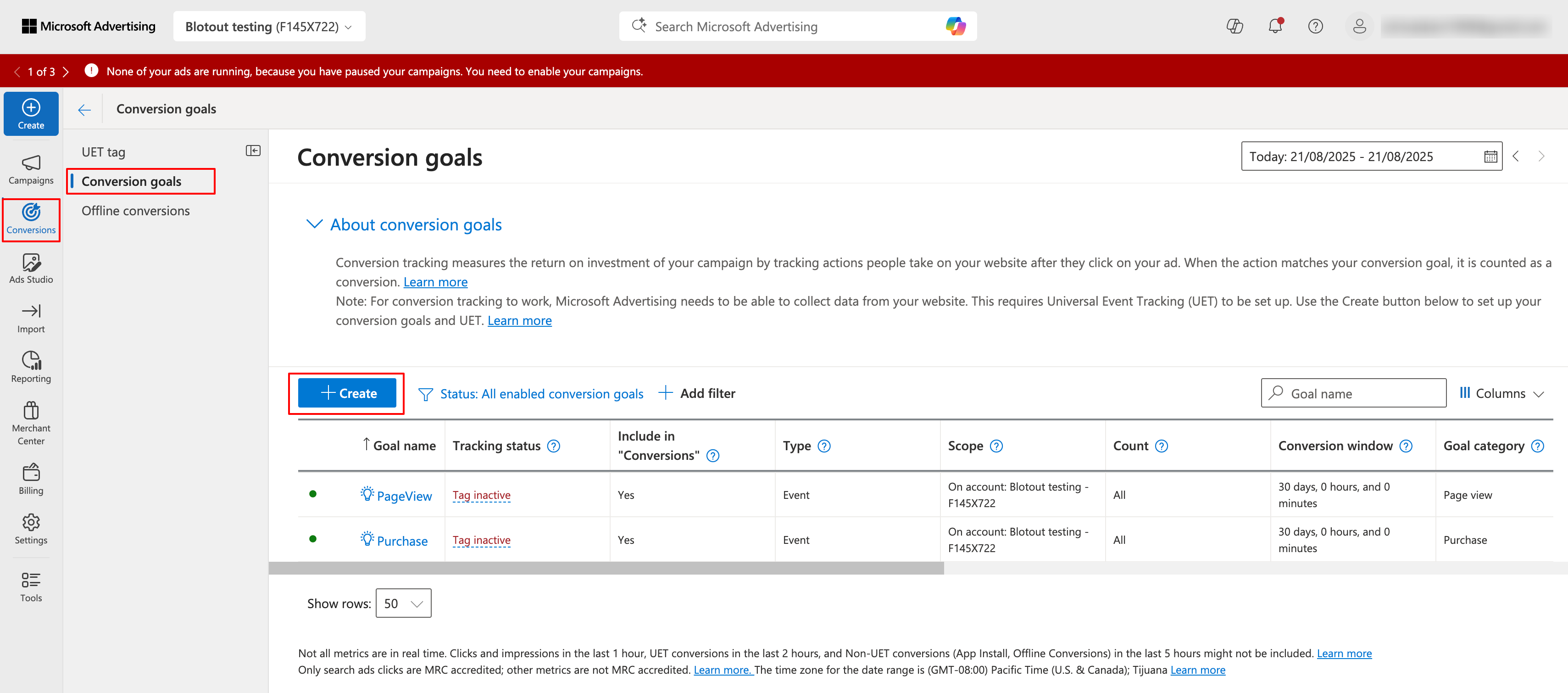
Log in to your [Microsoft Advertising](https://ads.microsoft.com/Auth) account, navigate to **Conversions** → **Conversion goals** from the left menu, click **+ Create**
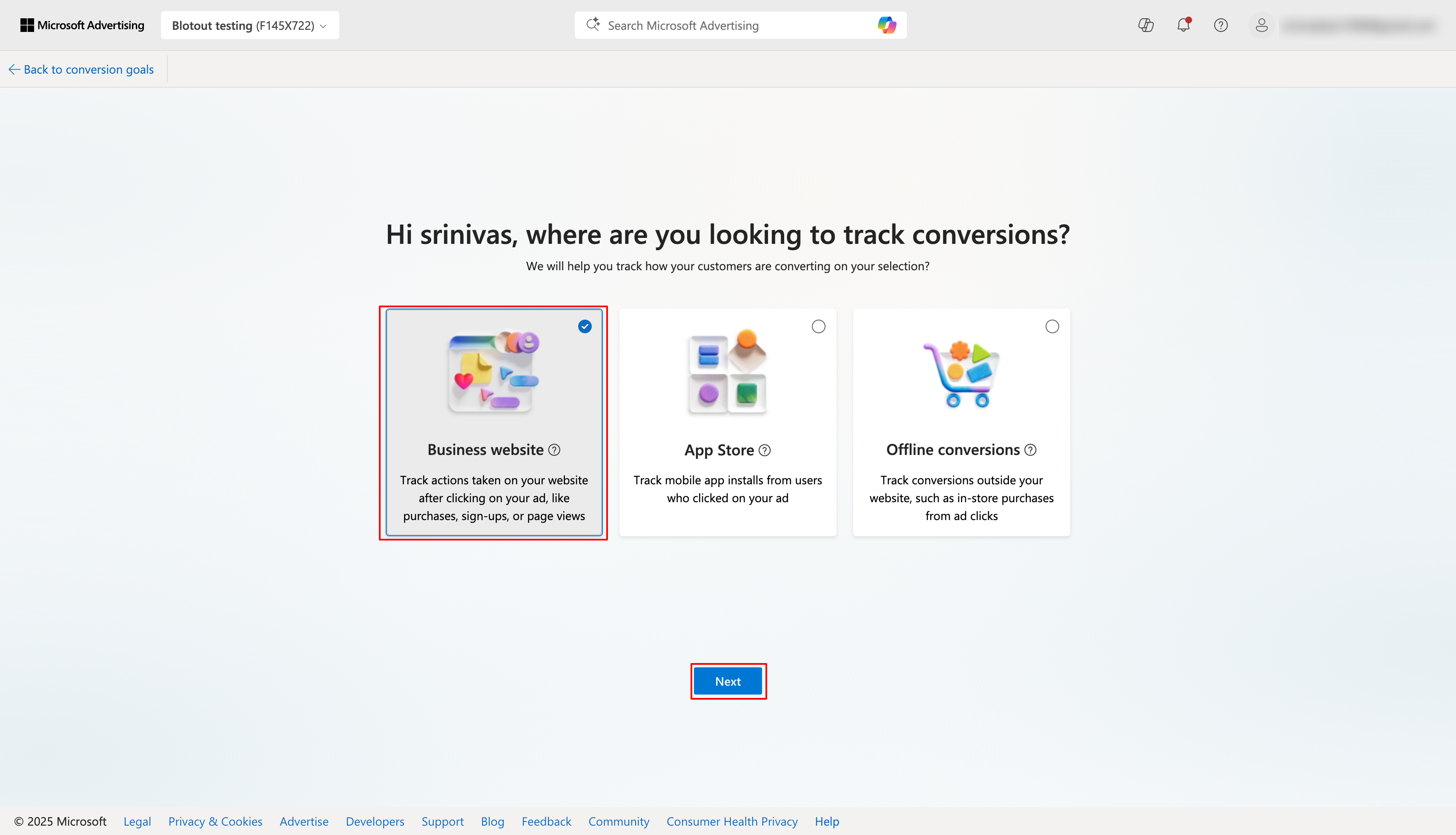
Select **Business** **website** as conversion type.
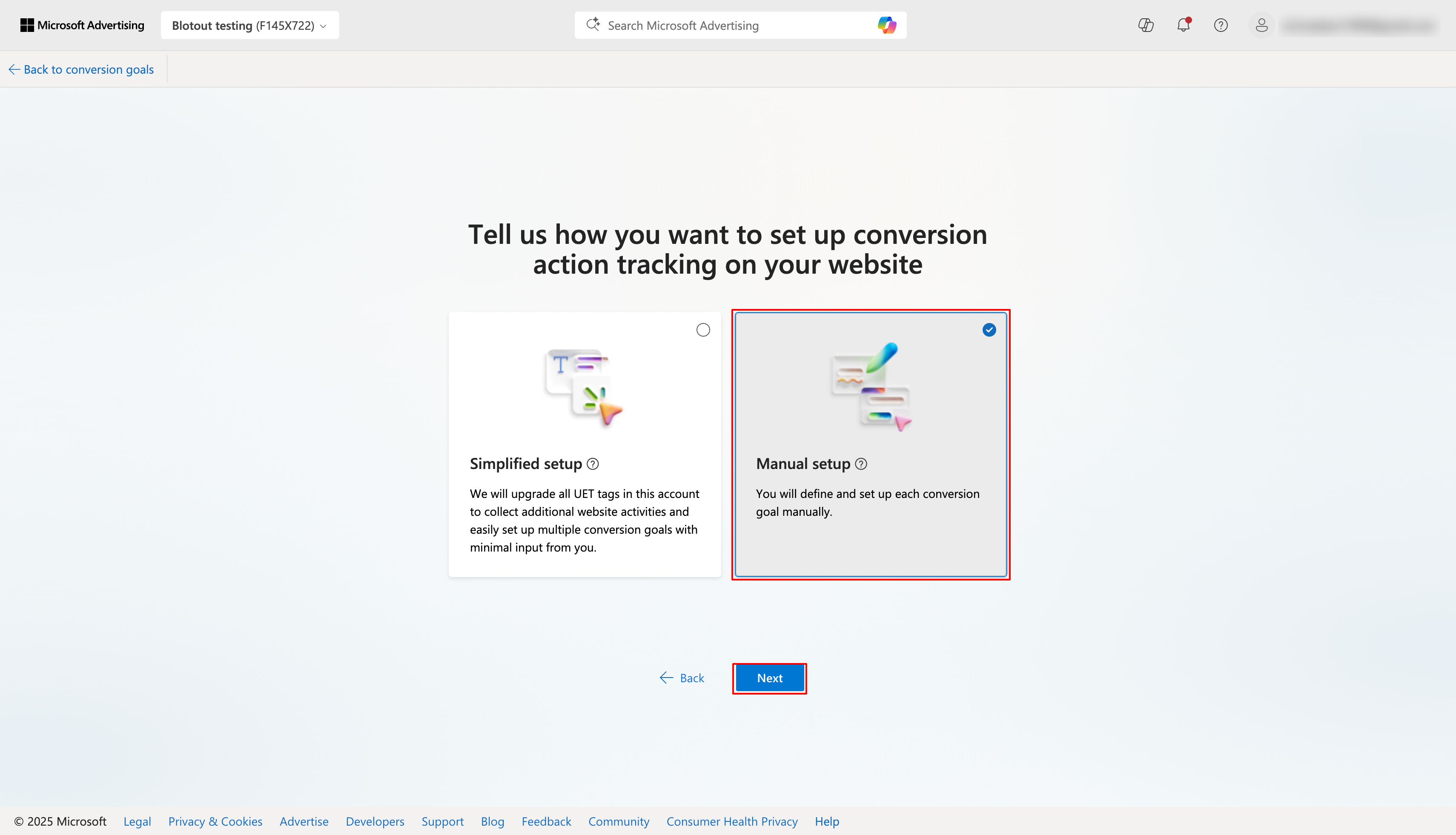
Select **Manual setup** and continue.
Choose your goal category (e.g., **Purchase**), select **Event** as the goal type.
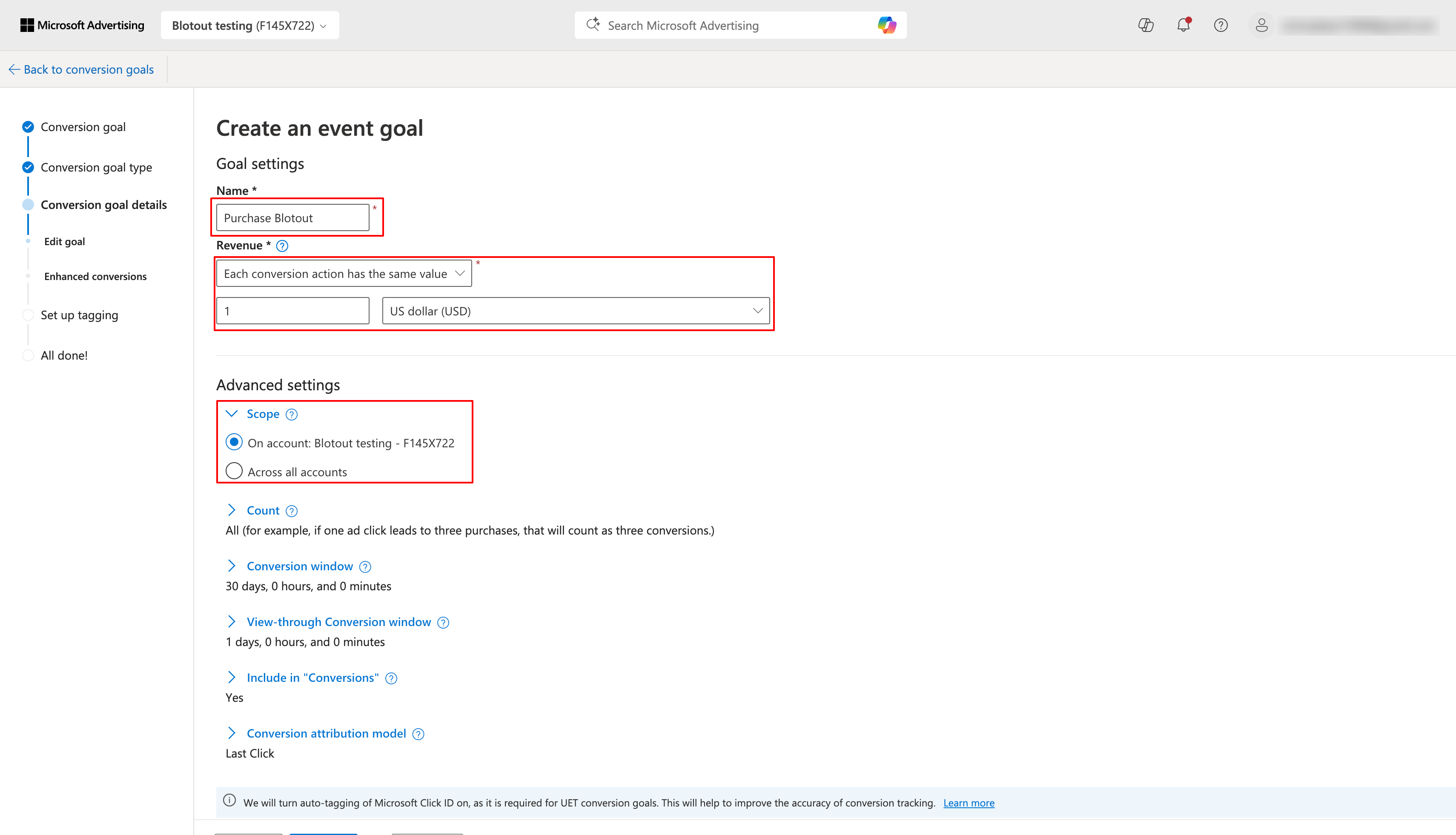
Name your conversion event, and configure the event action and revenue settings. It is critical to verify that the correct account is selected under the **Scope** settings, ensuring this account has access to the Tag ID provided to **EdgeTag**. This verification step is essential for successful event tracking and proper data collection functionality.
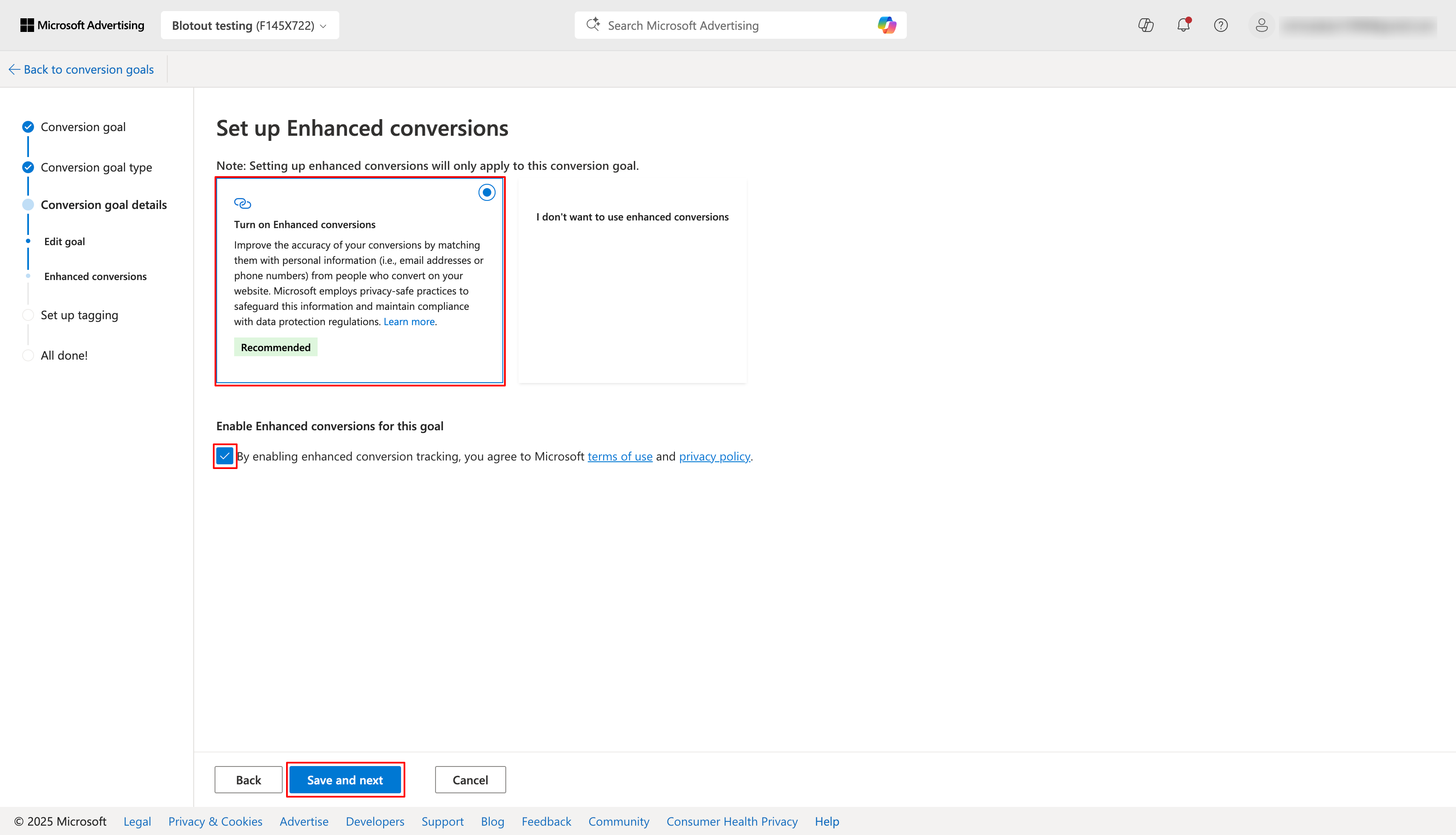
Enable **Enhanced Conversions** for better cross-device tracking and more accurate conversion data to improve your campaign results.
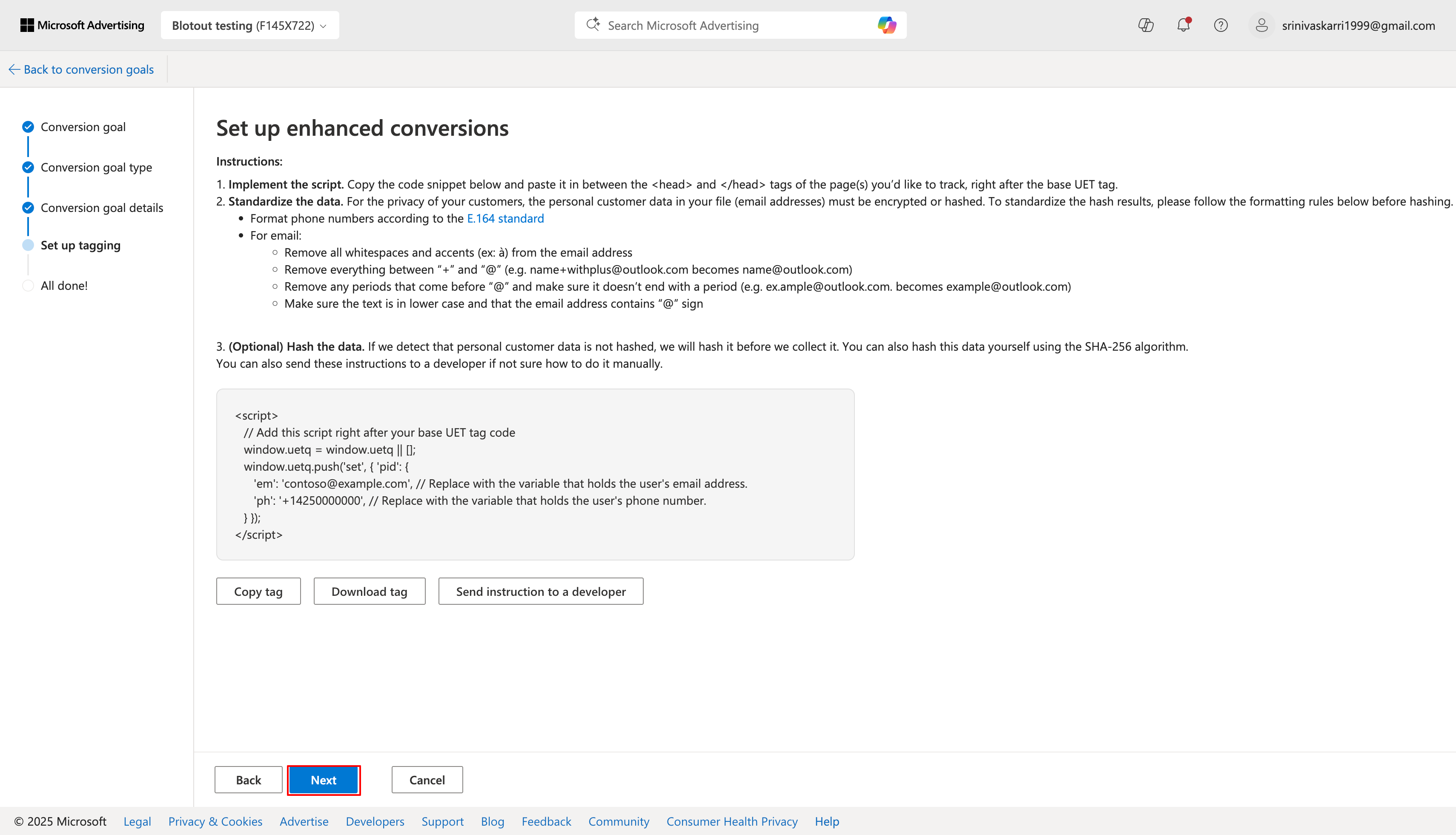
In the **Set up tagging** section, verify the correct UET tag is selected (should match your EdgeTag configuration), then select **"Yes, the UET tag was already installed"** option.
Skip enhanced conversions setup, click **Next** to continue.
Select **Manual installation** option since EdgeTag will handle the event tracking implementation.
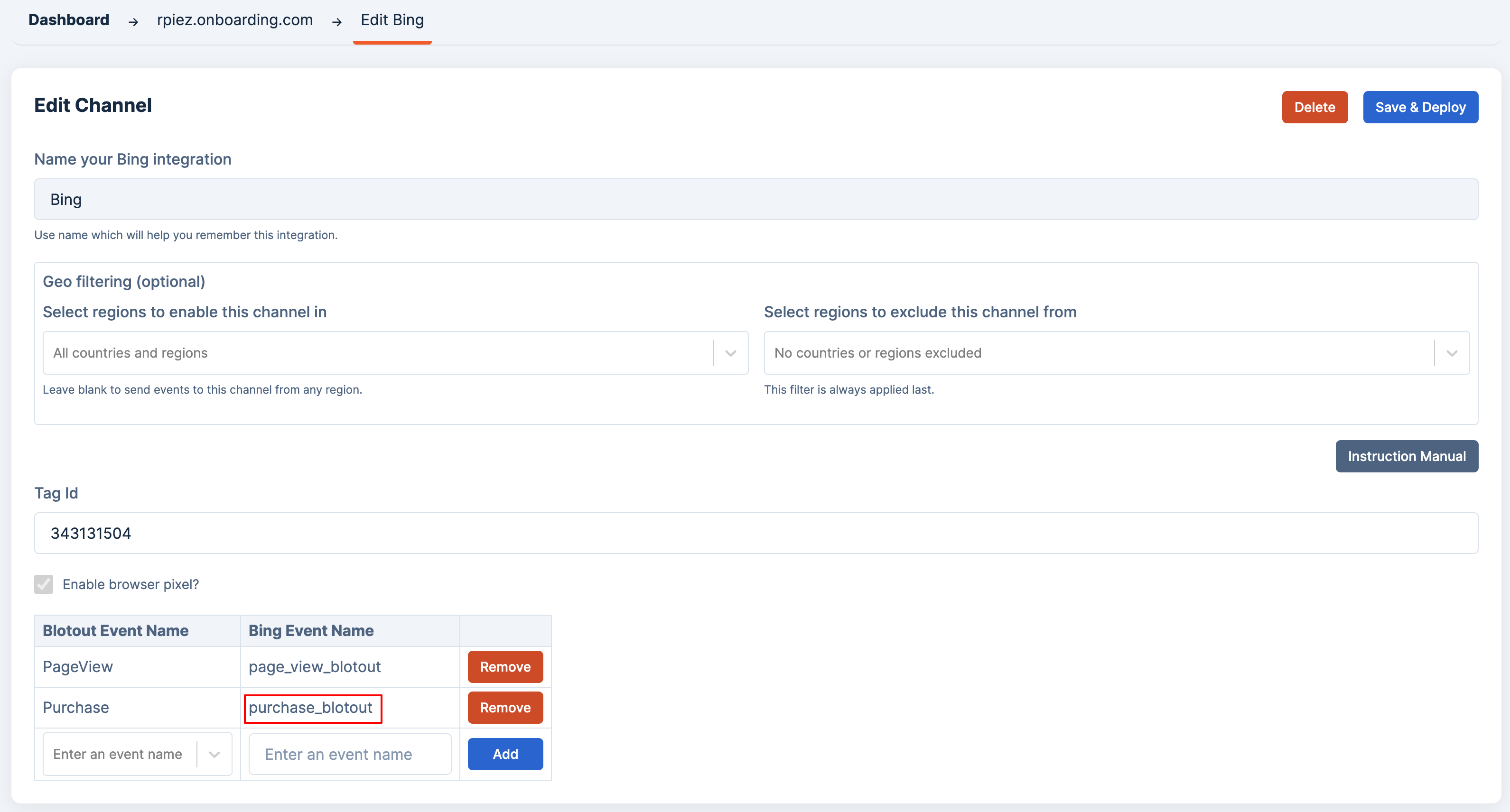
Copy the relevant **Bing Event Name** from **EdgeTag** configurations for bing
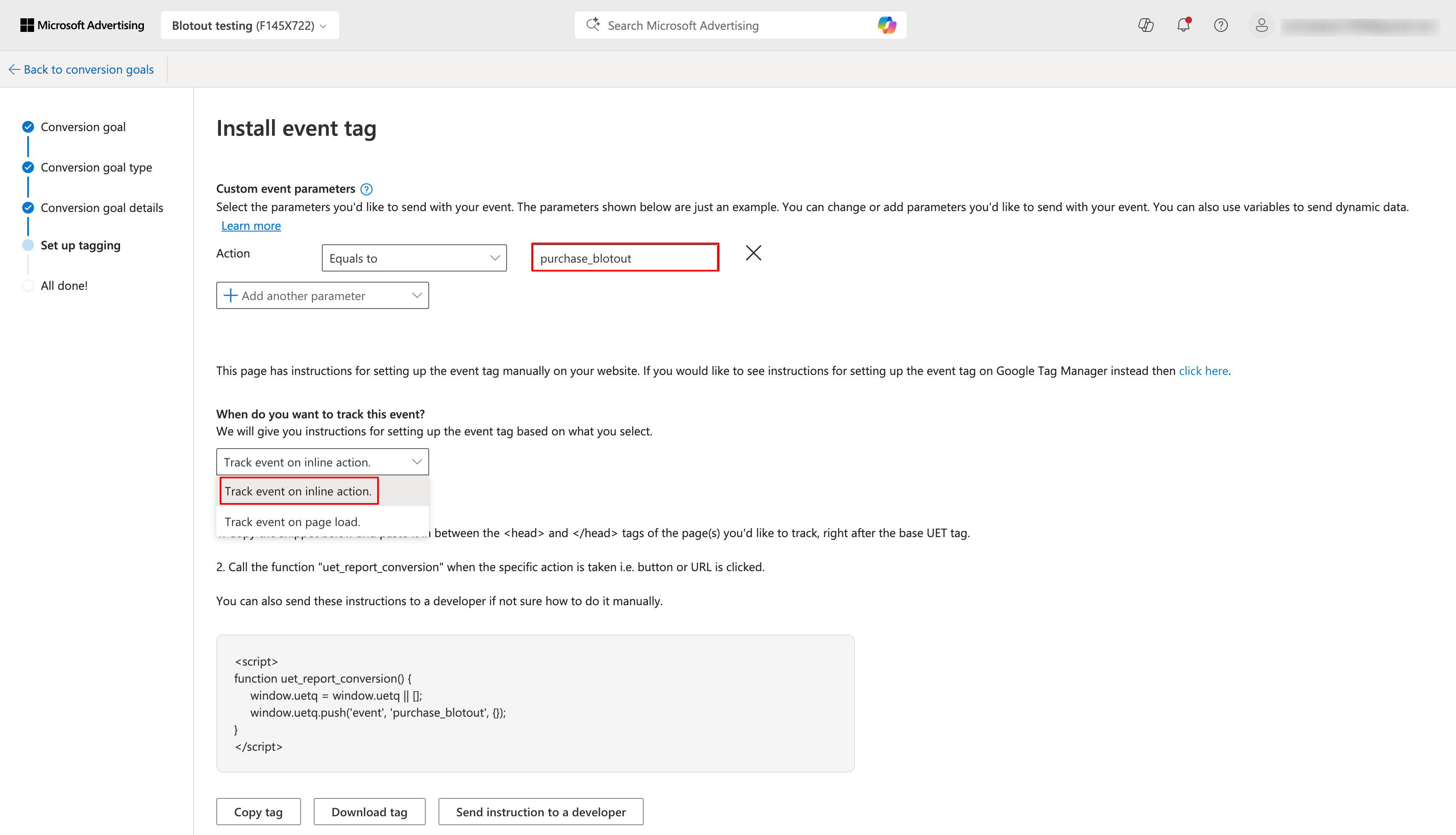
Paste the **Bing Event Name** from **EdgeTag** configuration into the Action field, then select "Track event on inline action" from the dropdown menu.
Click **"Save and Deploy"** to complete the setup. Your newly created conversion event will now appear on your Microsoft Advertising dashboard for tracking.
---
# Agent Instructions
This documentation is published with GitBook. GitBook is the documentation platform designed so that both humans and AI agents can read, navigate, and reason over technical content effectively. Learn more at gitbook.com.
## Querying This Documentation
If you need additional information that is not directly available in this page, you can query the documentation dynamically by asking a question.
Perform an HTTP GET request on the current page URL with the `ask` query parameter, and the optional `goal` query parameter:
```
GET https://docs.edgetag.io/channels/bing/faq.md?ask=&goal=
```
`ask` is the immediate question: it should be specific, self-contained, and written in natural language.
`goal` is optional and describes the broader end goal you are ultimately trying to accomplish on behalf of the user. GitBook uses it to tailor the answer towards what is most useful for that goal.
The response will contain a direct answer to the question and relevant excerpts and sources from the documentation.
Use this mechanism when the answer is not explicitly present in the current page, you need clarification or additional context, or you want to retrieve related documentation sections.