> For the complete documentation index, see [llms.txt](https://docs.edgetag.io/llms.txt). Markdown versions of documentation pages are available by appending `.md` to page URLs; this page is available as [Markdown](https://docs.edgetag.io/channels/google-ads/configuration.md).
# Configuration
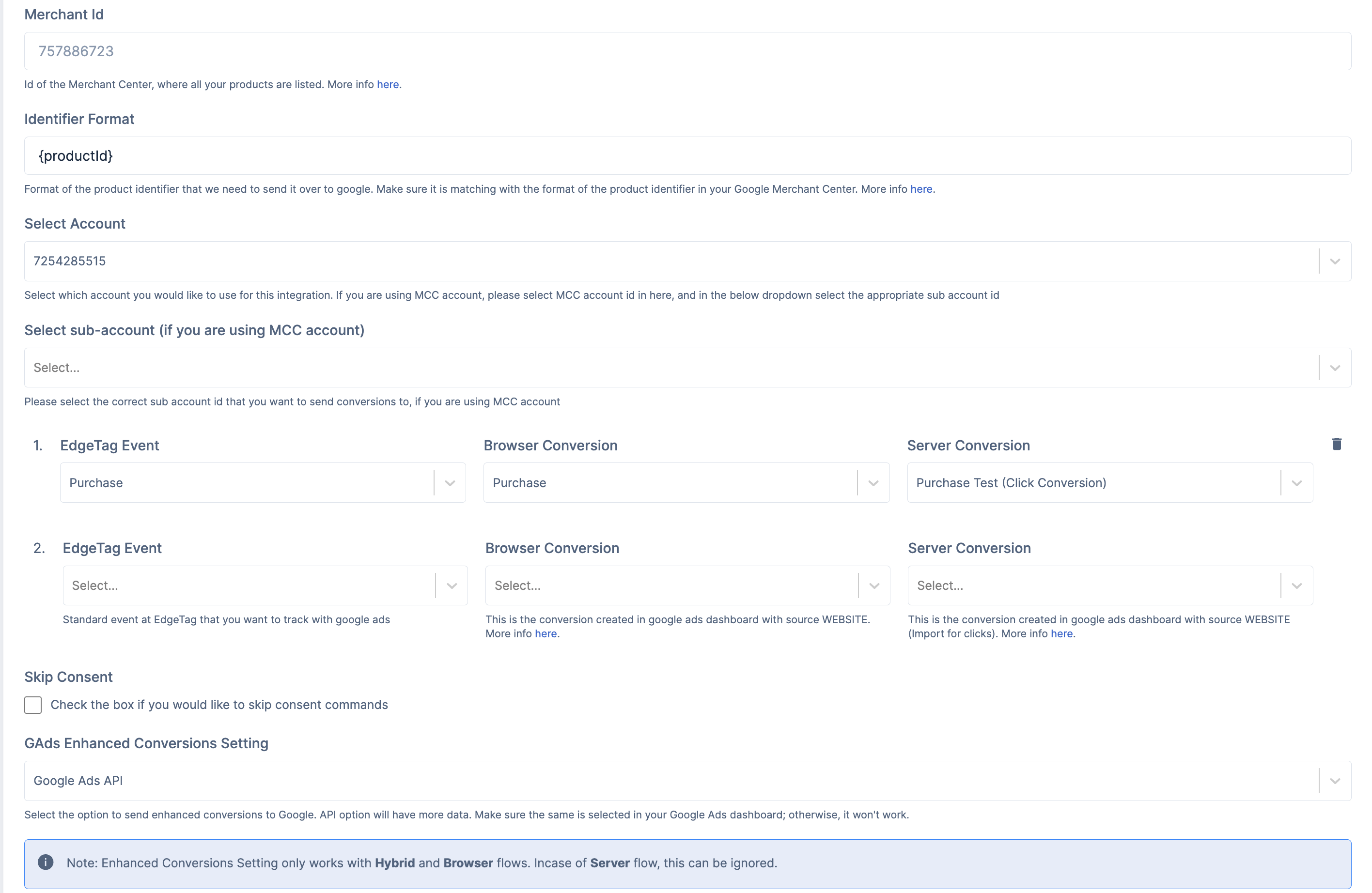
Now that the basic onboarding is complete, let's review all fields in the form and how to use them. Ad Account ID, Conversions Mapping, and Enhanced conversions settings were already filled in during the basic onboarding, so we will skip those fields.
### Merchant Id
This would help in attaching the conversion data to your product catalog.
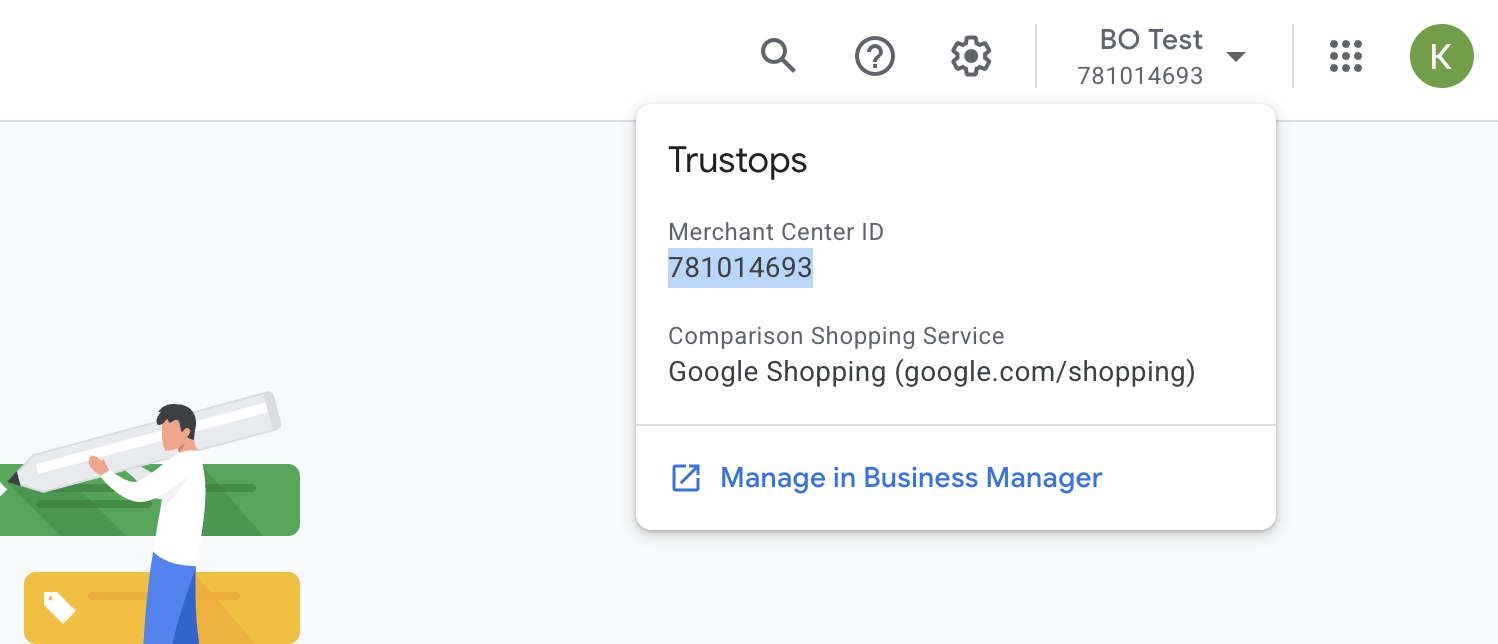
To find the Merchant ID, go to the Merchant Center [dashboard](https://merchants.google.com/). At the top right, select the correct merchant account, and you will see the associated ID.
### Identifier Format
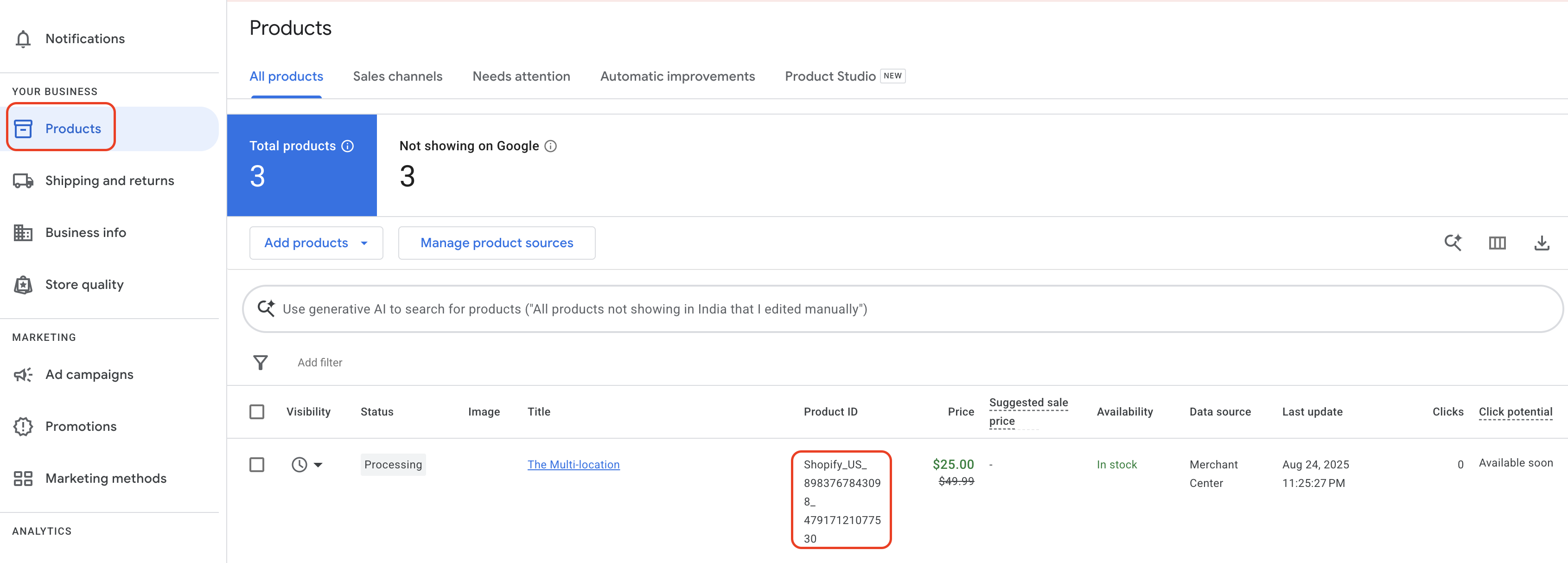
The Identifier Format is essentially the value of the Item ID in the Google Merchant Center. Based on the format, we need to add text in the form. For Example, if the Item IDs in your merchant center are of the format `Shopify_US_8983767843098_47917121077530` where the first number indicates product ID and the second one suggests variant ID, the text for the identifier format would be `Shopify_US_{productId}_{variantId}.` Assuming you are passing us the product ID and variant ID fields with the EdgeTag event, we can then generate the Item ID for purchased products and send cart data to Google Ads.
You have `{productId}`, `{variantId}` and `{sku}` variables you can use to add the format, assuming all these fields are sent with EdgeTag events in the [Content](#contents) object.
To find the Identifier Format, go to the Merchant Center [dashboard](https://merchants.google.com/). In the left section, look for products, and click on them. You would see a list of products in the table. From here, obtain the format of the Item ID being used for the products, and based on that, add the text for the Identifier format in the form.
### Skip Consent
If you are already using Google consent mode with another provider, then you have an option to skip setting consent data for Google consent states. This would help you manage Google consent across states and avoid conflicts when two providers use gtag, etc.
### Custom Query Key
As various browsers implement changes, you may need to set a custom click ID query parameter for your Google Ads. This can be accomplished by using a custom query key.
To set it up, first decide at which level in Google Ads you want to establish this parameter: account, campaign, or ad level. We recommend setting it at the account level for optimal management.
#### Account level
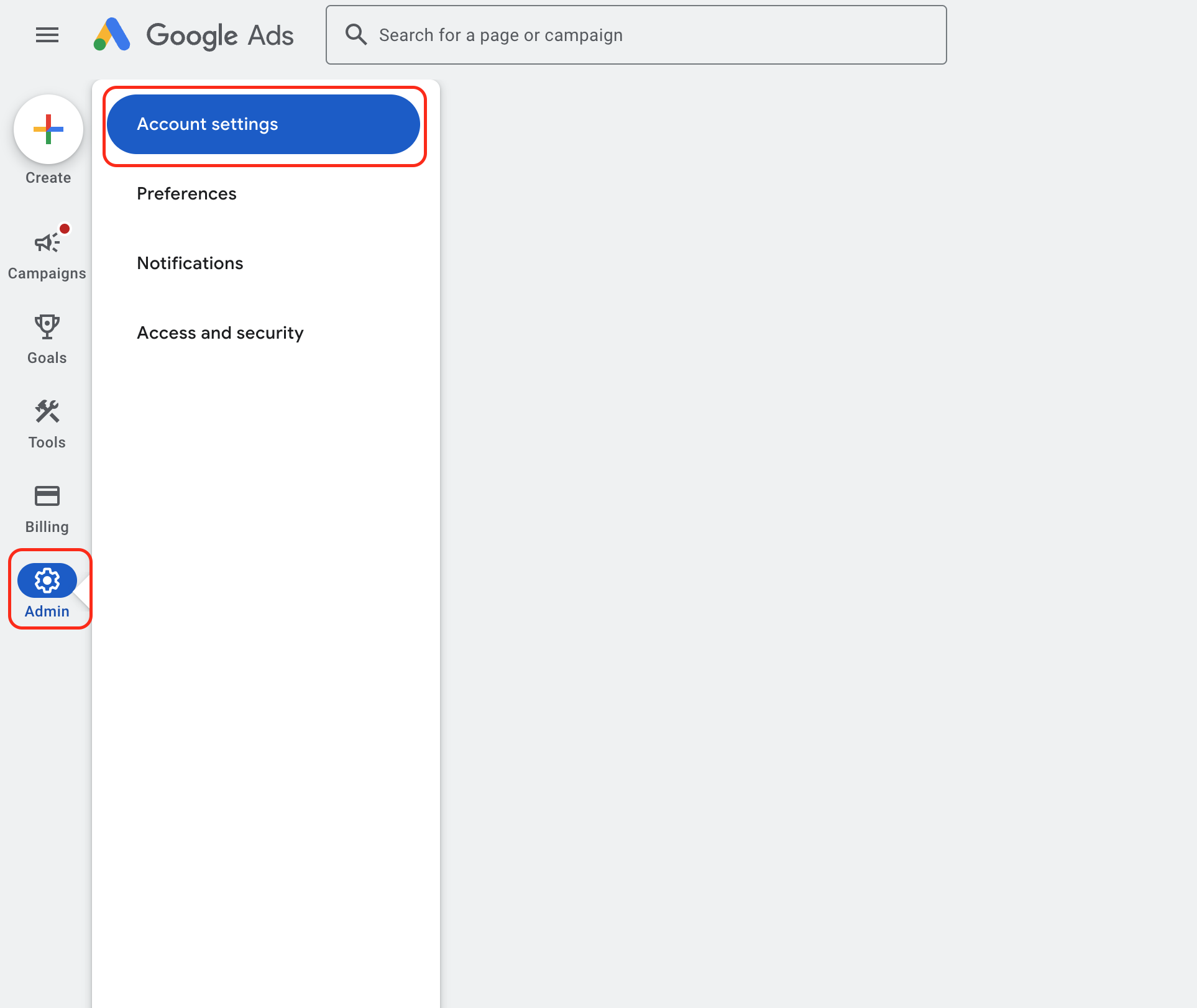
Go to [Account settings](https://ads.google.com/aw/settings/account) within the Admin menu.
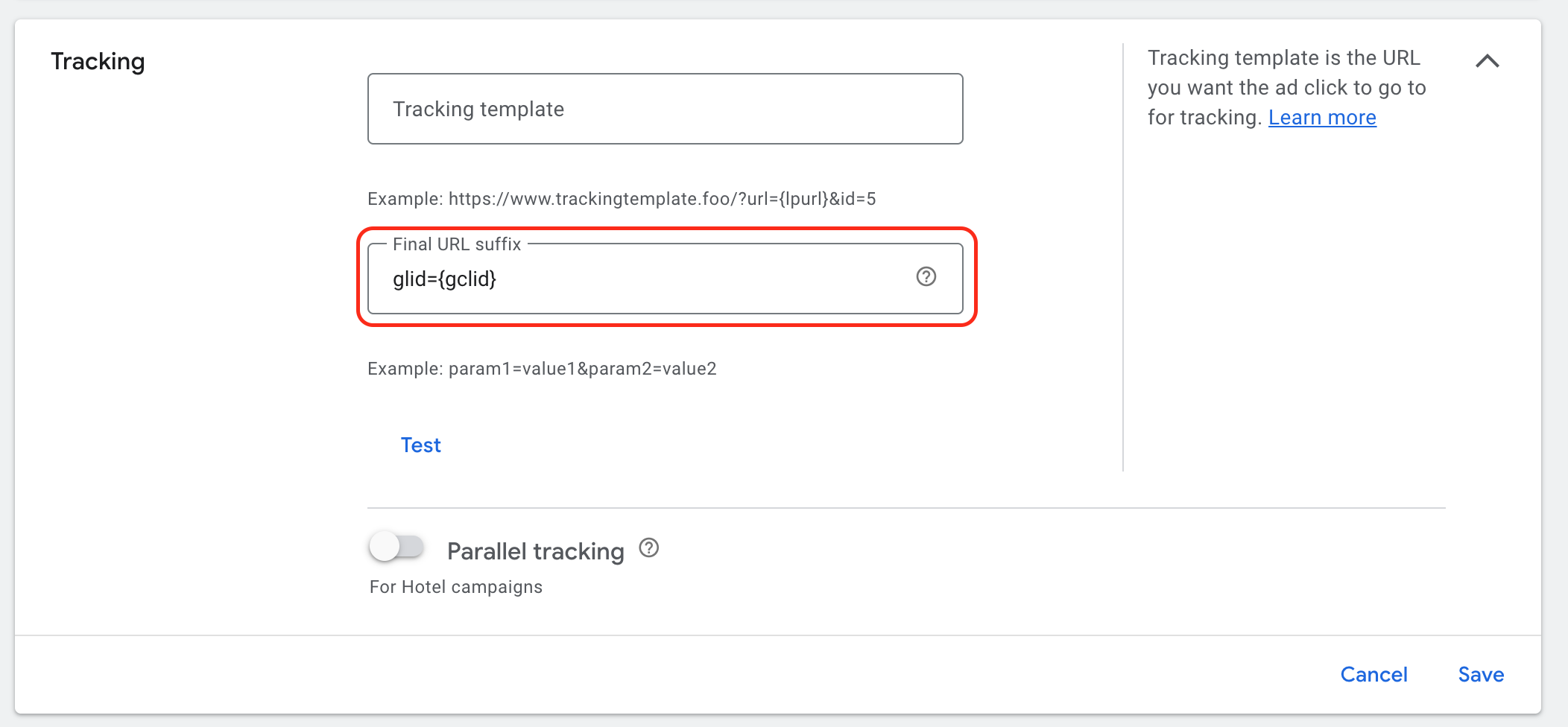
Click on the Tracking section.
Now you will need to select your custom key. In our example, we used `glid`, but you can pick your own. The only thing that you need to be careful about is that it is unique and not used by any other platform. Enter `glid={gclid}` the Final URL suffix in the box and click "Save".
Go back to the EdgeTag Google Ads form and enter `glid` (or the one that you chose) into the Custom Query key and click "Save".
#### Campaign or Ad level
For the reset, you can read how to do it in the Google Ads documentation.
{% embed url="" %}
### Allow Server Conversion without Click ID
This setting is turned on by default. With this enabled, we do try to send server conversions even without click id, as long as there is user data available.
You can turn this off by disabling the checkbox, if you don't want to allow server conversions without click IDs (enhanced conversions for leads). More info [here](https://support.google.com/google-ads/answer/15713840?hl=en)
For this feature to work properly, you would need to turn on Enhanced Conversions for Leads in Google Ads dashboard.
To turn on Enhanced Conversions for Leads, follow the below instructions
1. Go to Google Ads dashboard
2. Click on Goals -> Settings
3. Find the Enhanced Conversions for Leads and turn on this setting. You can select either of the options from Google tag/Google Tag Manager.
### Dynamic Remarketing
Dynamic remarketing in Google Ads is an advanced advertising feature that automatically shows personalised ads featuring the specific products or services that users previously viewed on a merchant's website. You can read more [here](https://support.google.com/tagmanager/answer/6106009).
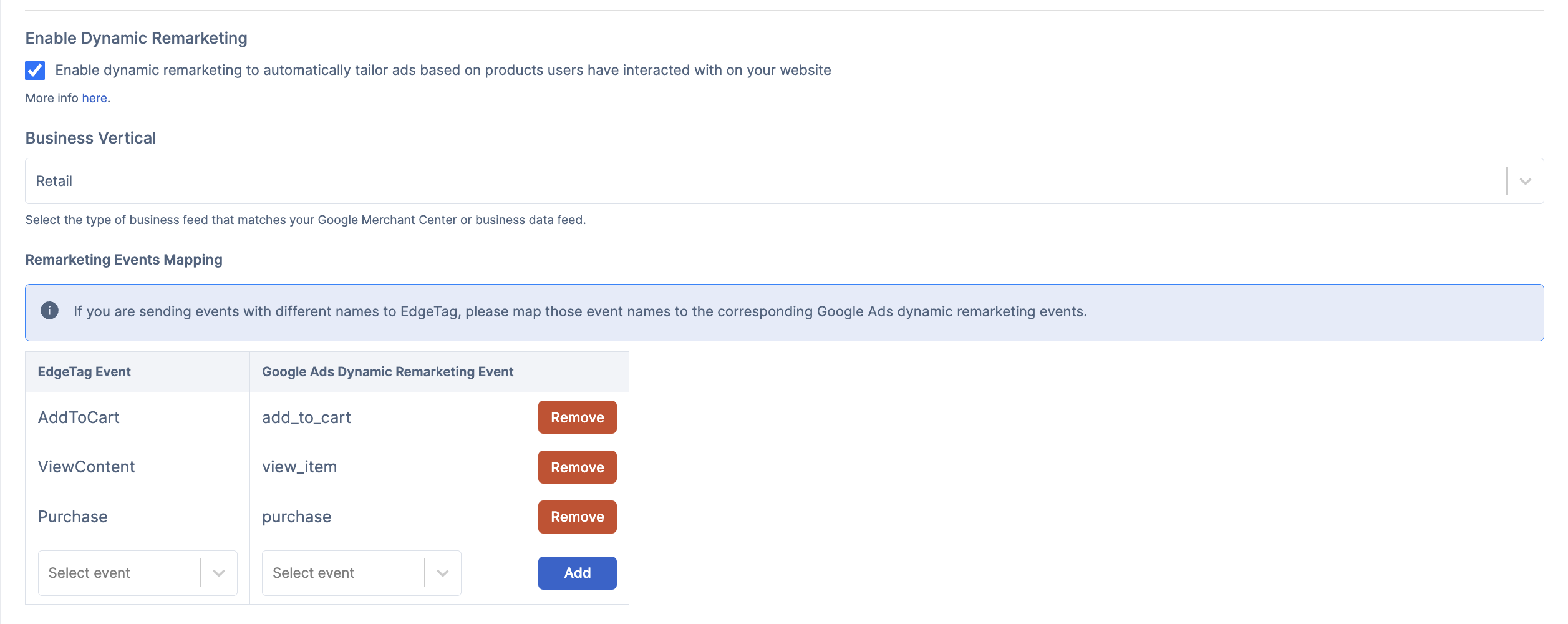
Once you enable the Dynamic Remarketing checkbox, there will be more fields we need to configure.
#### Business Vertical
Business Vertical refers to the type of business or industry the merchant operates in. This is needed since every business type has different parameters maintained in the catalogue and also what we need to send in that remarketing event payload.
E.g. For Retail business vertical we will need to send Product ID, but for Flights vertical we will need different parameters (say origin, destination) to be sent to Google Ads.
{% hint style="info" %}
Note: In case Business Vertical is set to Retail, make sure to set up the Identifier Format field. This way we can be sure that Product ID will be matched with Google Merchant Center feed item ID.
{% endhint %}
Please also refer to the [docs](https://support.google.com/google-ads/answer/7305793) and make sure the recommended/required fields are already being passed to EdgeTag events, if the events are custom codified.
{% hint style="warning" %}
Note: Please refer to the [docs](https://support.google.com/google-ads/answer/6053288) on creating feed for dynamic remarketing
{% endhint %}
#### Remarketing Events Mapping
By default, we map following Google events `add_to_cart`, `view_item` and `purchase` events to EdgeTag standard events `AddToCart`, `ViewContent` and `Purchase`. There are also other recommended events for dynamic remarketing from Google (`view_item_list` and `view_search_results`), if you are tracking these events you can map those Google events to EdgeTag event names you are using.
---
# Agent Instructions
This documentation is published with GitBook. GitBook is the documentation platform designed so that both humans and AI agents can read, navigate, and reason over technical content effectively. Learn more at gitbook.com.
## Querying This Documentation
If you need additional information that is not directly available in this page, you can query the documentation by asking a question.
Perform an HTTP GET request on the following URL with the `ask` and `goal` query parameters:
```
GET https://docs.edgetag.io/channels/google-ads/configuration.md?ask=&goal=
```
`ask` is the immediate question: it should be specific, self-contained, and written in natural language.
`goal` is what the user is ultimately trying to achieve, the reason they need the answer. Sharing it helps GitBook give you a better, more relevant answer. A goal is most helpful when it describes the outcome the user wants rather than restating the question. For example, with `ask=how do I create an API token`, a goal like `automate deployments from our CI pipeline` lets GitBook tailor the answer to that use case.
The response will contain a direct answer to the question and relevant excerpts and sources from the documentation.
Use this mechanism when the answer is not explicitly present in the current page, you need clarification or additional context, or you want to retrieve related documentation sections.